app entrance imageAPP
Video

CREATE VIDEO

Text to Video

Image to Video

AI Avatar

Music Video

Short Video

EDIT VIDEO

Video Extender

Add Sound Effect

Video Effects

Video to Video

Video Enhancer

Mimic

AI Dance

Text to Video AI Generator Online

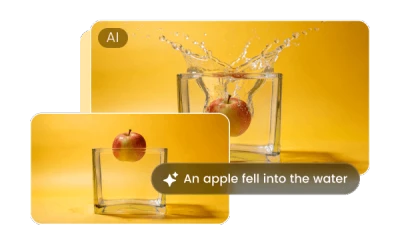
Turn a written idea into an AI video online. Describe the scene, action, camera movement, style, and mood, then choose a model and settings to generate your clip.

  • yesWrite or paste a text prompt of up to 2,000 characters
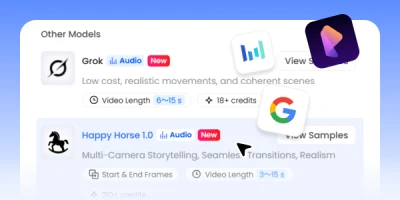
  • yesChoose from multiple AI video models for different creative goals
  • yesAdjust duration, aspect ratio, resolution, audio, and storyboard options
Text to Video AI Generator Online

Create Videos from Text with More Control

  • Text Prompt to Video

    Text Prompt to Video

    Describe a subject, setting, action, and mood to turn a simple idea or script into a generated video clip.

  • Multiple AI Video Models

    Multiple AI Video Models

    Compare available models and select the one that best matches your preferred speed, visual quality, motion, or storytelling style.

  • Director-Style Camera Prompts

    Director-Style Camera Prompts

    Guide framing and movement with prompt details such as close-up, wide shot, dolly push, pan, tilt, or tracking shot.

  • Natural Motion and Scene Detail

    Natural Motion and Scene Detail

    Add clear actions, physical interactions, lighting, and environmental details to help the model create more coherent motion.

  • Audio and Storyboard Options

    Audio and Storyboard Options

    Use supported model features to generate audio or plan multi-shot videos with a storyboard when your project needs more structure.

  • Flexible Video Settings

    Flexible Video Settings

    Set the aspect ratio, duration, resolution, and other available options to fit social posts, ads, explainers, or creative clips.

Text Prompt to Video

Text Prompt to Video

Describe a subject, setting, action, and mood to turn a simple idea or script into a generated video clip.

Multiple AI Video Models

Multiple AI Video Models

Compare available models and select the one that best matches your preferred speed, visual quality, motion, or storytelling style.

Director-Style Camera Prompts

Director-Style Camera Prompts

Guide framing and movement with prompt details such as close-up, wide shot, dolly push, pan, tilt, or tracking shot.

Natural Motion and Scene Detail

Natural Motion and Scene Detail

Add clear actions, physical interactions, lighting, and environmental details to help the model create more coherent motion.

Audio and Storyboard Options

Audio and Storyboard Options

Use supported model features to generate audio or plan multi-shot videos with a storyboard when your project needs more structure.

Flexible Video Settings

Flexible Video Settings

Set the aspect ratio, duration, resolution, and other available options to fit social posts, ads, explainers, or creative clips.

How to Write Better Text to Video Prompts

Structured prompt

Organize the subject, action, camera, lighting, and mood into clear fields when you need a repeatable prompt structure.

Best for:Repeatable promptsDetailed scenesConsistent direction

Camera control

Name the shot, lens, camera movement, and framing directly in your prompt to guide how the scene is filmed.

Best for:Cinematic B-rollTravel contentVisual storytelling

Multi-shot sequence

Describe a sequence of connected shots and use clear cut markers so the model can follow the intended order and pacing.

Best for:TikTokReelsYouTube ShortsBrand montages

Natural language

Write in plain sentences and combine action, atmosphere, lighting, and sensory detail for an easy starting point.

Best for:Quick ideasTravel scenesAtmosphere videos

Storyboard

Break the video into timed beats and explain what changes in each shot when you need more precise scene-by-scene direction.

Best for:Narrative videosAd conceptsMulti-scene stories

How to Generate a Video from Text

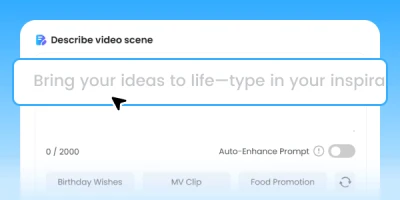
  1. Enter a Clear Text Prompt

    1. Enter a Clear Text Prompt

    Describe the subject, action, setting, camera movement, visual style, lighting, and mood. Use Auto-Enhance Prompt if you want help adding detail.
  2. Choose a Model and Settings

    2. Choose a Model and Settings

    Select an AI video model, then review the available duration, aspect ratio, resolution, audio, and storyboard settings for your project.
  3. Generate, Preview, and Refine

    3. Generate, Preview, and Refine

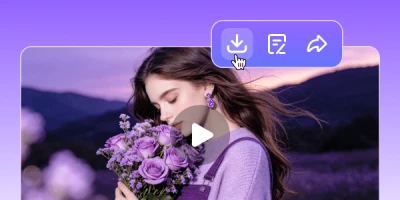
    Generate the video and preview the result. If needed, make the prompt more specific, adjust the settings, and generate another version.

FAQs About Text to Video AI

A text to video AI generator turns a written prompt into a video clip. You describe what should appear and happen, while the selected model generates the visuals and motion. Available models may also support audio or multi-shot creation.

Create Your Next Video from a Text Prompt

Describe the scene, choose your settings, and turn your idea into an AI-generated video online.