


 Join our Discord!
STORM II AI Dance Video Maker
Upload a character image and a dance reference to guide the movement in Seedance 2.5.
- STORM II Dance

See the Character and Dance Prompt in Action
The character card fixes the lead’s appearance. A movement reference and the prompt guide the dance; both previews show the same finished example.
Turn a Character Card into a Dance Video
Start with a clear character card to carry the same face, hair and outfit through the dance. Add your own movement reference in Image to Video.
Create Your Dance Video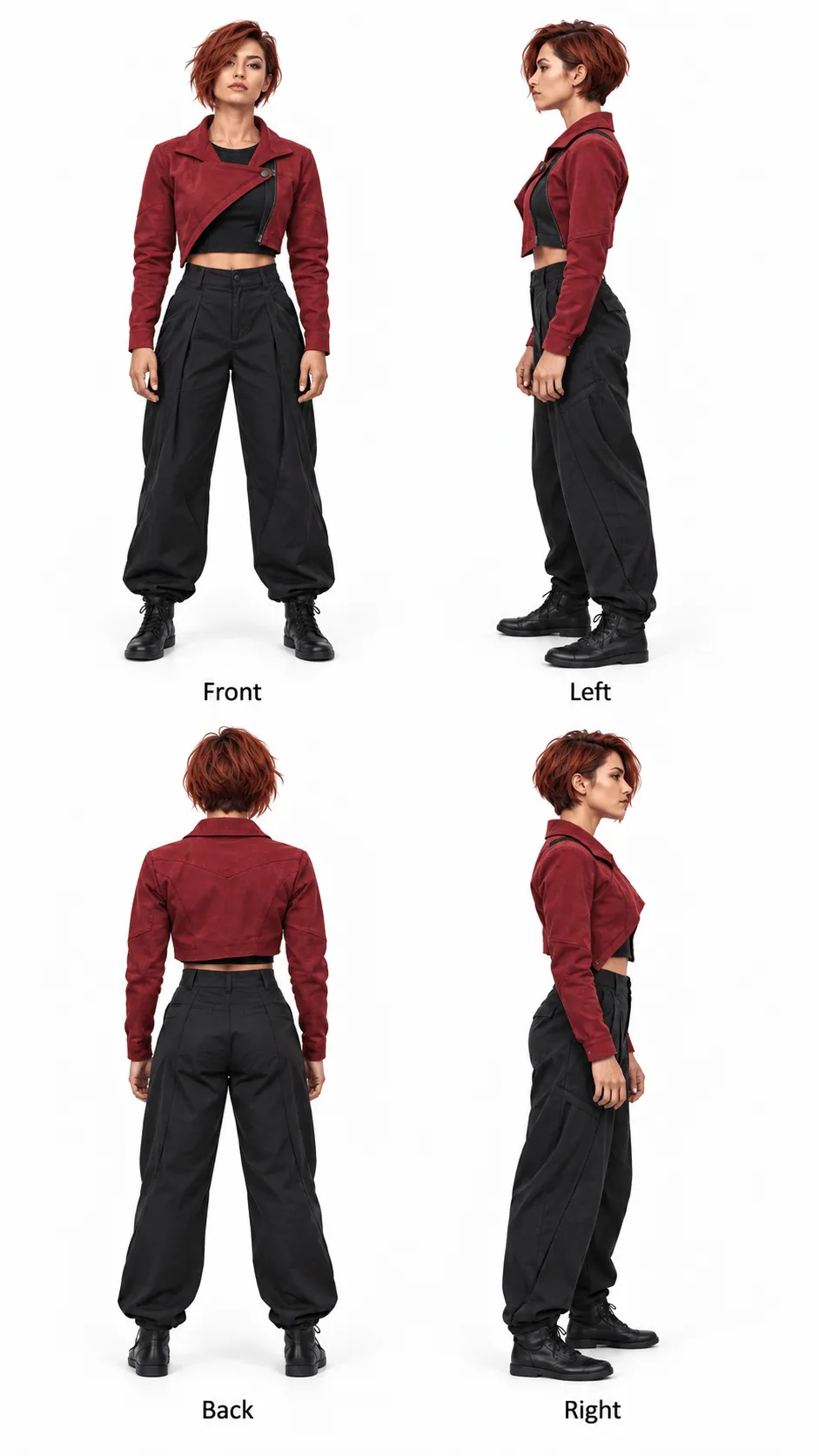
Guide the Dance with a Reference Video and Prompt
Use the movement clip as @video and your character card as @image. Keep choreography and identity instructions together.
Try This PromptCreate a new cinematic video featuring a main character inspired by @video. Use @video primarily as creative inspiration for the choreography and physical motion: body movements, arm and hand gestures, posture changes, movement timing, group synchronization, rhythm, and dynamic pacing. Also draw inspiration from its scene atmosphere, shot composition, camera language, and visual style. Prioritize the demonstrated choreography and physical movement. The main character performs through body movement and gestures only, without singing or lip-syncing. Keep the mouth naturally relaxed and facial expressions subtle and appropriate to the movement. Maintain a consistent character appearance based on @image, with realistic anatomy, grounded feet, natural body mechanics, smooth synchronized motion, stable facial features, and cinematic visual quality.
How to Make a STORM II AI Dance Video in 3 Steps
The example uses a character card, a reference clip, Seedance 2.5, and a final audio edit.
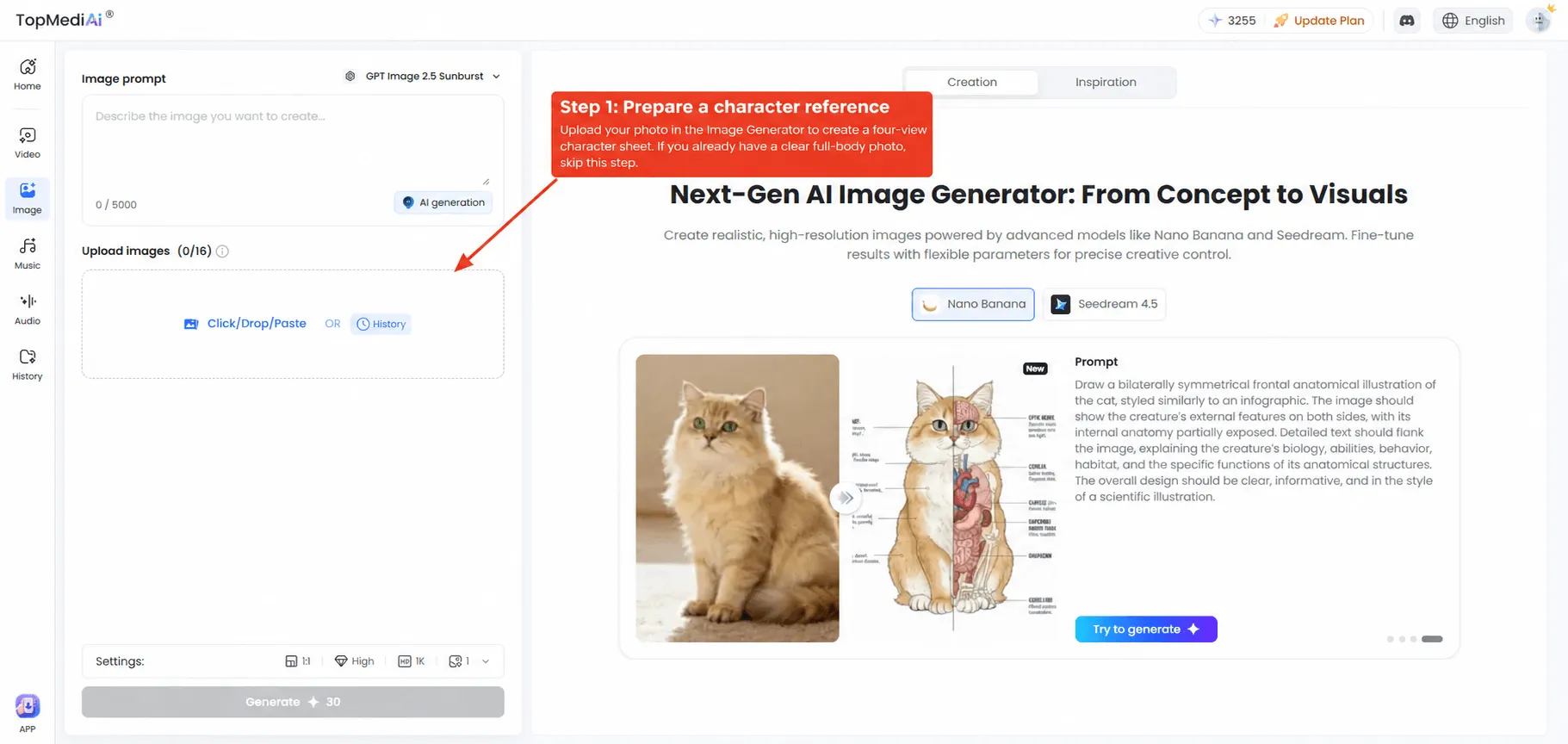
Prepare a Consistent Character Image
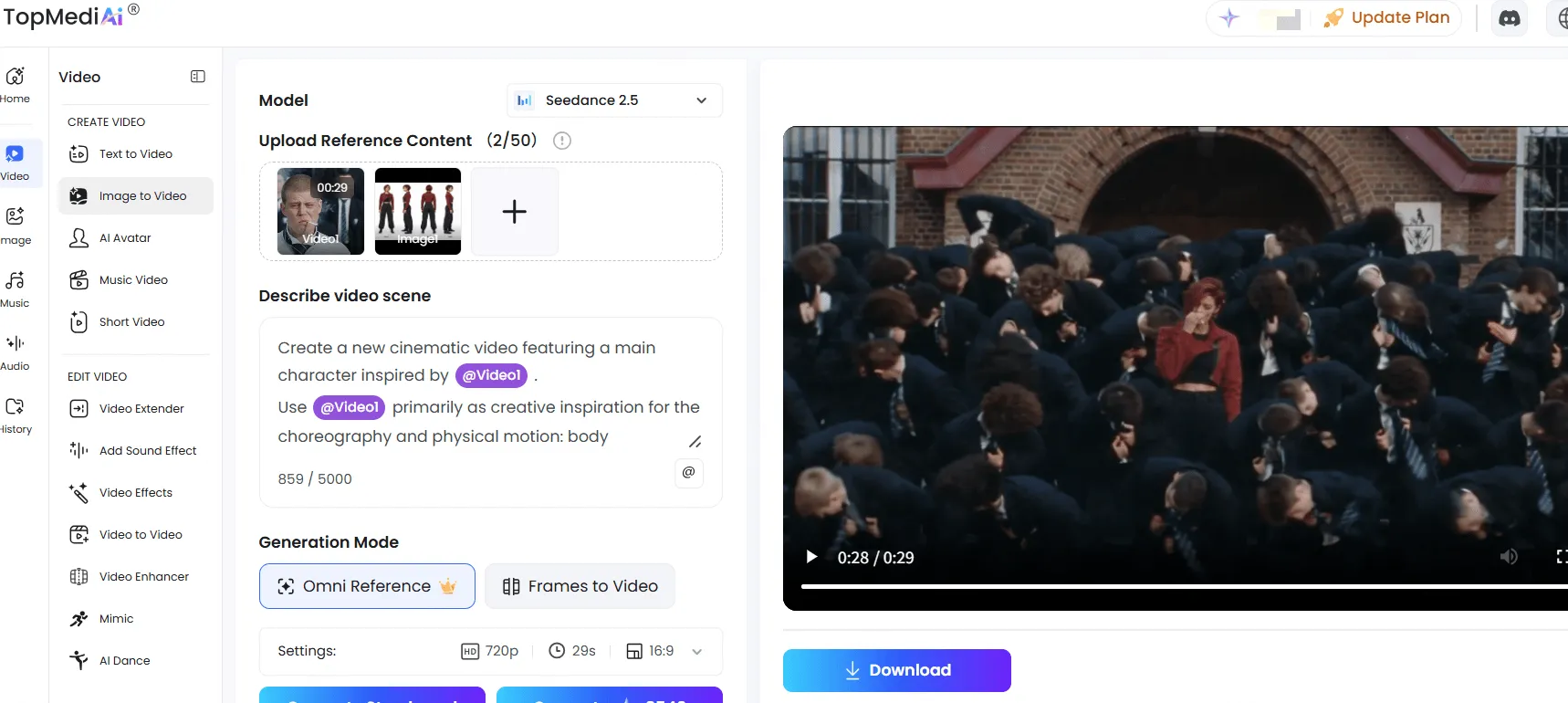
Upload your character photo to TopMediai Image and create a clear four-view character sheet. If you already have a usable full-body reference, you can start with that instead.
Generate the Dance with Seedance 2.5
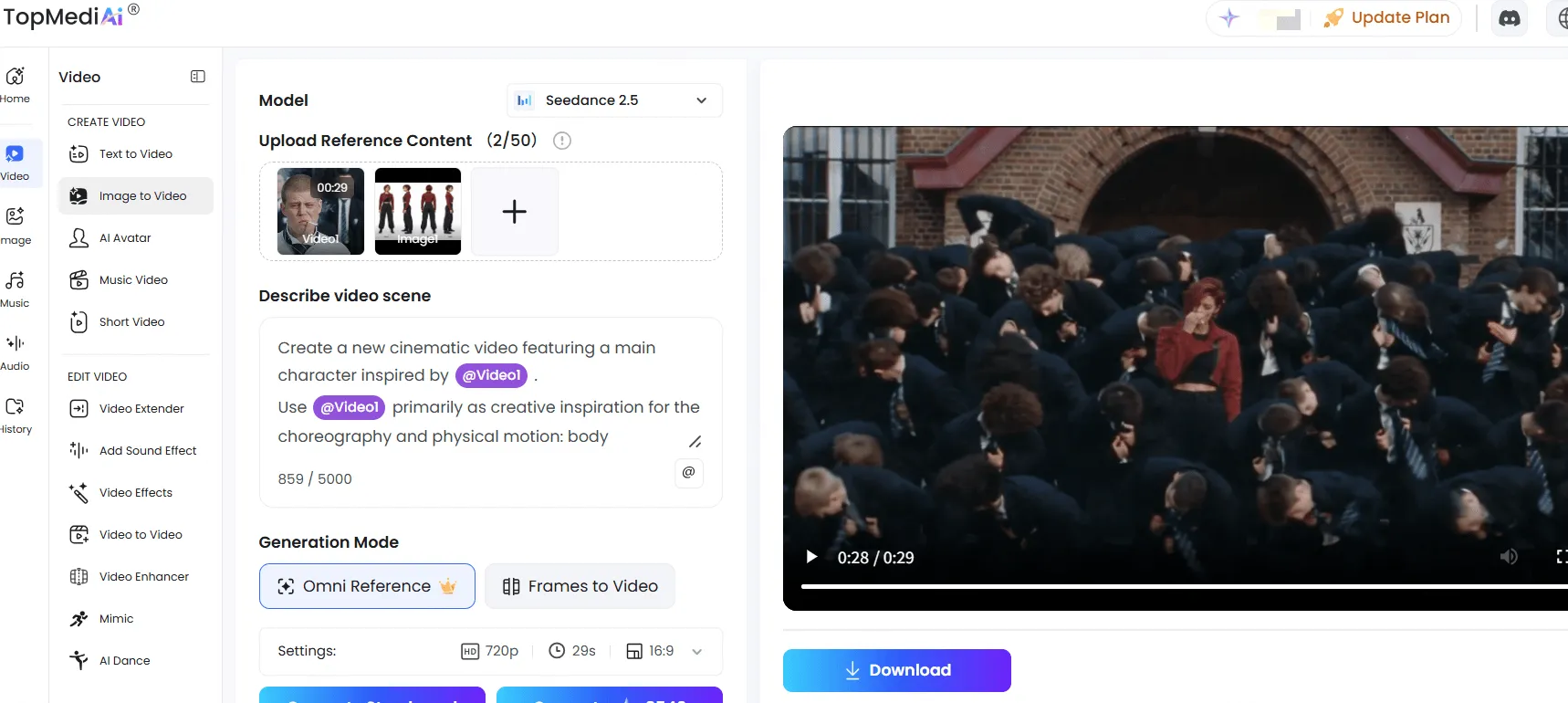
Open Image to Video, choose Seedance 2.5 and Omni Reference, then upload the character image and reference MP4. Insert their @ mentions in the prompt. For this example, select 16:9, 29s and 720p, and turn Generate audio off. Check the credit estimate before generating.
Add the Music in an Editor
Download the silent result. In a video editor, align it with your source clip or an audio track you can use, keep the music and mute or hide the original footage. Check the opening and final beats before export.
What Makes the Dance Look Consistent
A Prompt You Can Adapt for the STORM II AI Dance Trend
The tested example prompt is prefilled above. Keep its motion, identity and no-lip-sync instructions together.
Prompt Focus
What to Change
Choreography and Timing
Reference the movement source as @video and describe body movements, gestures, group synchronization and camera pacing.
Your Character
Reference the uploaded character sheet as @image. State which face, hairstyle and outfit should remain consistent.
Natural Performance
Keep movement physical, with grounded feet, natural body mechanics and no singing or lip-syncing.
The Files Behind the Finished Dance Video
Character Card
The lead character image supplies the face, hairstyle, outfit and proportions. Use a clear full-body view or a consistent character sheet.
Create a CharacterDance Reference MP4
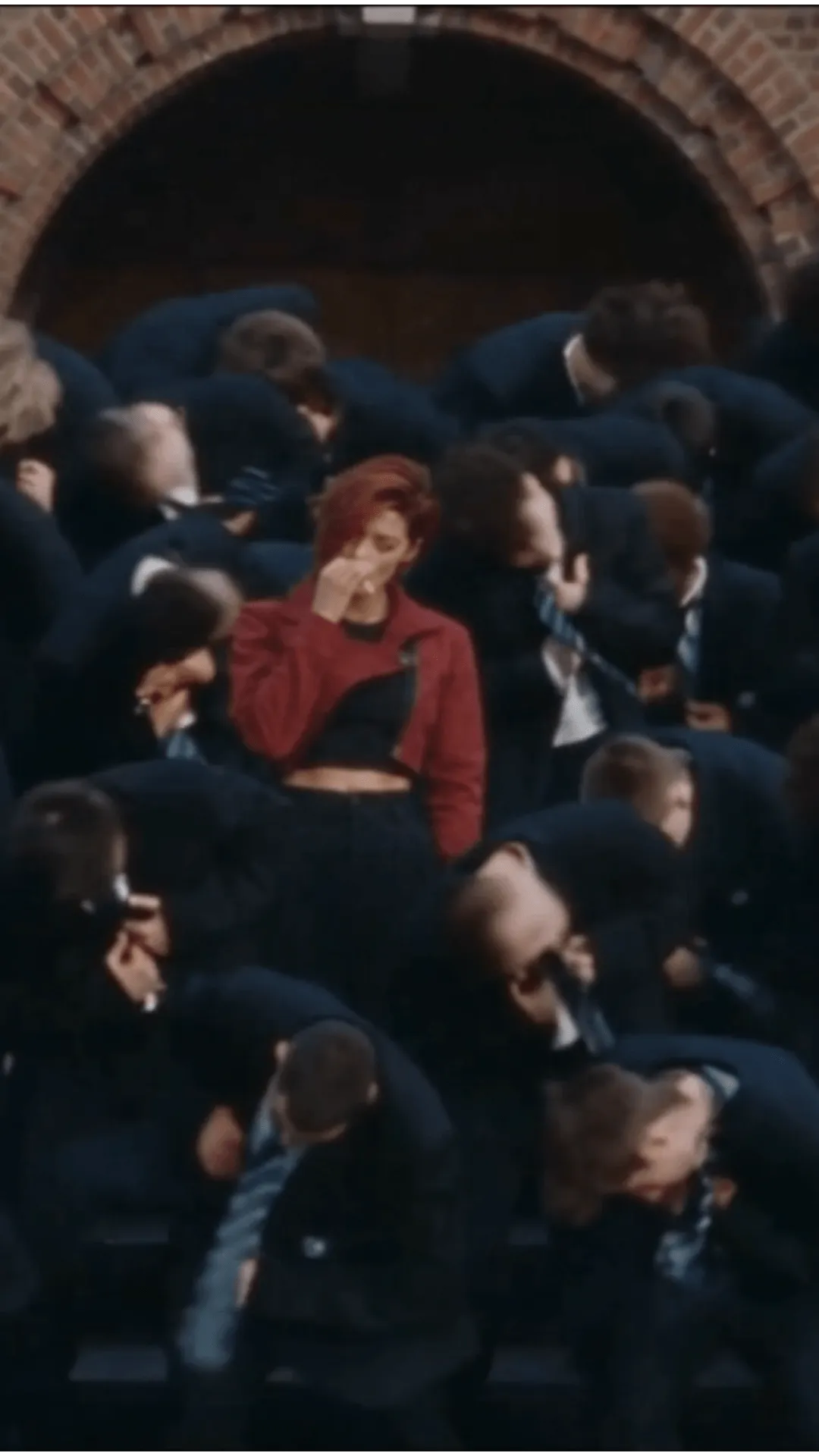
A movement clip guides the choreography, group timing and shot language. Upload it in the generator; this page only needs a still preview of the source.
Open Video GeneratorFinished Example
Review the silent AI render for identity and motion, then align the chosen soundtrack in your editor.
Make Your Version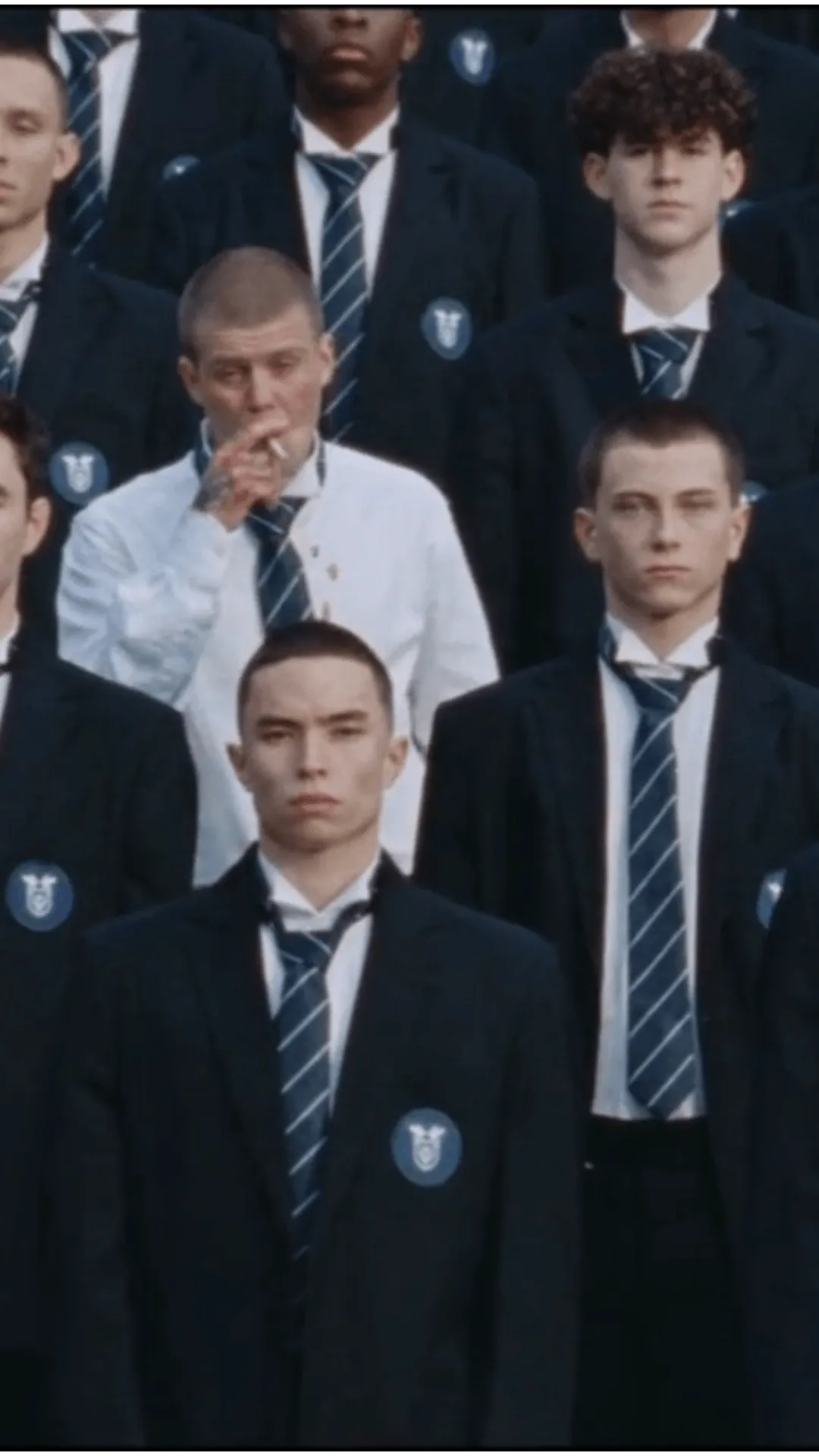
Four Checks for a More Consistent AI Dance Video
A Practical Review of Your Dance Video
Check the input images, motion and audio edit before you publish your version.
Keep the lead recognizable
Use one clear face and a visible full outfit so the lead remains identifiable across camera angles.

Character card
Before generationGive motion a clear source
Choose a movement clip with readable gestures, grounded steps and useful camera pacing.
Dance reference
Before generationCheck the full render
Review hands, feet, face consistency and group timing; adjust the prompt or image if they drift.
Visual review
After generationFinish the soundtrack
Align a track you can use with the visual beats, then check the opening and ending before export.
Final edit
Before publishingExplore More TopMediai Tools for Music and Video Creation
STORM II AI Dance Video FAQs

Make Your Own STORM II-Inspired Dance Video
Bring your character image and a dance reference together, then finish the music in your editor.
Create Dance Video