


 Video Generation Types
 Supported AI Models
 AI Video Effects



 AI Video Tools
 AI Music Tools
 AI Voiceover Tools
 More Features
 API for Music-related Services
 API for Voiceover-related Services

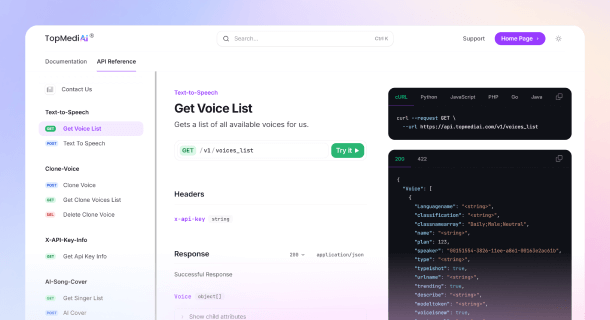
 TopMediai's API Documentation:
 Help&Support
 Popular Tips


 Join our Discord!

 AI Video Generator


I recently needed to overlay my video onto a screen at an angle so it looked natural and realistic. I quickly realized that AI tools can handle this automatically, making the whole process much faster and easier.
If you’ve run into the same problem, keep reading—I’ll explain what angled video overlays are, why creators use AI for screen overlays, how to do it step by step, and which tools actually work best.

- Part 1: What AI Screen Overlays Are and Why You Need Them
- Part 2: How I Use AI to Overlay a Video Onto a Screen at an Angle
- Part 3: The Best AI Tools to Overlay a Video Onto a Screen at an Angle
- 1. Luma AI — Video-to-Video
- 2. HeyGen — Simple & Fast Overlay Tool
- 3. Runway ML — Professional Motion Tracking
- Bonus: My Recommended AI Video Generator
- Part 5: Frequently Asked Questions
Part 1: What AI Screen Overlays Are and Why You Need Them
What AI Screen Overlays
AI screen overlays refer to using artificial intelligence to place your video onto another screen—such as a phone, laptop, tablet, or monitor—while automatically matching the correct angle, perspective, and motion.
The goal is simple: make your inserted video look like it truly belongs on the device in the scene.
Why You Need AI Screen Overlays
From my experience, creators turn to AI for angled screen overlays because the old way is slow, technical, and honestly not worth the headache. AI handles everything for you, and the results look clean and natural. Here’s why I rely on it:
I no longer need After Effects or any tricky corner pinning.
The overlays look more realistic and professional.
It’s perfect for app demos, UI walkthroughs, and product tutorials.
AI tracks moving or handheld screens automatically.
It works great for mockups, ads, UGC videos, and tech-style content.
Part 2: How I Use AI to Overlay a Video Onto a Screen at an Angle
Here’s the workflow I personally use—simple, repeatable, and basically foolproof:
Step 1: Upload the base video
Upload a clip containing the device or screen.
I’ve found that footage with clearly visible screen edges helps the AI detect the surface more accurately.
Step 2: Upload the video you want to place on the screen
This can be an app demo, UI walkthrough, gameplay, or any clip you want displayed on the device.
Most tools allow timing adjustments later.
Step 3: Select the AI screen replacement or AI overlay feature
Each platform names it differently, but the function is the same. The AI begins analyzing the screen’s angle and motion.
Step 4: Let the AI handle the perspective
At this stage, the tool automatically:
matches the screen’s perspective
adjusts distortion
tracks motion
adapts brightness and reflections
This replaces the manual work that normally takes the longest.
Step 5: Make small adjustments
Most tools offer basic controls for scaling, brightness, or color. I usually make minor tweaks to ensure the inserted video blends naturally.
Step 6: Export the final video
Once everything looks aligned, export the clip. You end up with a clean angled overlay that blends seamlessly with the original footage.
Part 3: The Best AI Tools to Overlay a Video Onto a Screen at an Angle
1 Luma AI — Video-to-Video
Luma AI isn’t a traditional overlay tool, but its strength lies in how well it understands camera angles. Their “change video framing and camera angles” feature is incredibly advanced. If your final output needs a cinematic feel, Luma gives you that edge.

Intelligent camera-angle reconstruction.
Natural perspective simulation.
Realistic motion preservation.
Strong V2V transformation quality.
- Very realistic angles.
- Great for stylized or creative shots.
- Handles motion beautifully.
- Output looks cinematic.
- Not purely an “overlay” tool.
- May require more trial and error.
- Processing takes time.
2 HeyGen — Simple & Fast Overlay Tool
RIf I need something quick and straightforward, HeyGen is usually my go-to. It detects screens accurately and replaces them cleanly—no learning curve.

One-click screen detection.
Angle-aware replacement.
Easy drag-and-drop workflow.
Browser-based, no software needed.
- Perfect for beginners.
- Fast results.
- Very accurate device-screen tracking.
- Reliable for tutorials and app demos.
- Limited customization.
- Free plan has restrictions.
- More utility-focused than creative.
3 Runway ML — Professional Motion Tracking
Runway is amazing when the screen in the video is moving a lot. It has the best tracking out of all the tools I tried. If you have handheld shots or shaky footage, Runway handles it like a champ.

Advanced motion tracking.
High-accuracy angle recognition.
VFX-level screen replacement.
Great stabilization tools.
- Extremely accurate.
- Perfect for dynamic scenes.
- Works well for ads and professional projects.
- Very flexible editing tools.
- More complex than HeyGen.
- Premium features can get expensive.
- Requires more fine-tuning.
Bonus: My Recommended AI Video Generator
1 TopMediai AI Video Generator
TopMediai Video to Video is a powerful AI tool that lets you convert video to anime style and apply other creative looks to your clips. Simply upload an existing MP4 or MOV video (up to 30 seconds) and instantly transform it using a range of visual styles — from cinematic painting to cartoon, anime, or artistic textures. With its AI-driven video to anime and style transfer capabilities, you can completely reimagine your footage while keeping motion, timing, and original content intact.

Quickly generate video clips for intros, demos, or background footage.
Supports Google Veo 3, Sora2, Kling, Pixverse and more models for high-quality AI videos.
Set video size (9:16, 16:9, 1:1) and duration (5 or 10 seconds) to match your platform and style.
Built-in Image Generator for Video Creation.
- Fully online with no software installation needed.
- Fast and user-friendly interface.
- 200+ video effects for creative flexibility.
- Fully royalty-free content with no usage restrictions.
- One plan to access to all products on the entire website.
- Best anime style video generator.
- No frame-level manual editing options.
Part 5: Frequently Asked Questions
1 Can AI really match the screen angle automatically?
Yes. Most modern AI video editors use surface detection and perspective analysis to identify the exact shape of a screen, even when it’s tilted or partially moving.
2 How long does an AI angled overlay take to process?
Most tools generate results in under a minute for short clips. More complex shots—such as handheld movement or rotating screens—may take slightly longer, but still far faster than manual VFX editing.
3 Can I replace the screen content with a different aspect ratio?
Yes. AI tools automatically adapt the inserted video to the screen’s shape, so even if your content is 16:9 and the device is vertical, the tool will crop or fit it correctly. Some platforms also allow manual framing adjustments.
More Related Airticles
AI B-Roll Generator: Add B-Roll Footage in One Click
Conclusion
AI has made AI overlay my video onto a screen at an angle workflows much easier than they used to be. Tasks that once required manual tracking now come together in minutes, and the final overlays look far more natural and consistent.
If you often work with screen replacements, angled overlays, or app demos, the AI tools covered today can help you save time and produce cleaner, more professional results with much less effort.

-

February 24, 2026
TopMediai Coupon Code: Save on All AI Tools with One Plan -

January 29, 2026
Super Bowl AI Voice: Create Viral Game-Day Content -

January 26, 2026
Best Santa Video for Kids in 2026: Create Magical Christmas Messages -

January 26, 2026
How to Use Grok Imagine: Free Tutorials & Best Alternatives -

January 26, 2026
Best 5 AI News Generators to Produce News Articles & Videos
Recent Blogs


