


 Video Generation Types
 Supported AI Models
 AI Video Effects



 AI Video Tools
 AI Music Tools
 AI Voiceover Tools
 More Features
 API for Music-related Services
 API for Voiceover-related Services

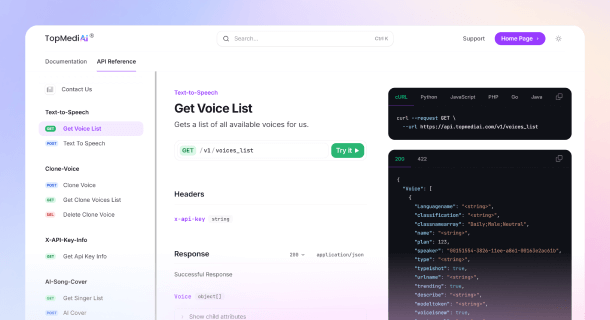
 TopMediai's API Documentation:
 Help&Support
 Popular Tips


 Join our Discord!

 AI Video Generator


Snowfall instantly adds a sense of wonder and emotion to any video, whether it’s a festive holiday clip, a romantic short film, or a cinematic travel vlog. Now, with the rise of AI snow effect technology, you can add lifelike falling snow to your footage in just minutes — right from your browser.
This article explores the best AI snow generators and practical tips to help you effortlessly add snow effect to video online free.

- Part 1: How to Add Snow to Video (Step-by-Step Guide)
- Part 2: Best AI Snow Generators to Add Snow Effect to Video Online
- 1. TopMediai AI Video Generator - AI Generated Realistic Snow
- 2. FlexClip Snow Video Effects
- 3. Flixier Video Snow Effect
- Part 3: Tips for Creating Realistic AI-Generated Snow Videos
- Part 4: FAQs about AI Snow Effect
Part 1: How to Add Snow to Video (Step-by-Step Guide)
Way 1: Single-Scene Generation (Add Snow to a Video Easily)
If you only need a short winter clip or want to add snow effect to a video for a cozy or cinematic moment, single-scene generation is the fastest way.
Step 1: Open Image-to-Video or Text-to-Video on TopMediai.
① Image-to-Video: Upload your original scene — such as a forest path, city street, or cabin — and type a prompt like:
“Gentle snowfall over a quiet forest, glowing streetlights, soft winter lighting, cinematic 6 seconds.”

② Text-to-Video: Enter a short description such as:
“Snow falling over a mountain village at night, soft focus, cold wind, realistic snow particles, 4K.”

Step 2: Choose the Veo 3 model for realistic AI-generated snow effects or Topix/Vidu for faster rendering.
Step 3: Adjust video duration (5–10 seconds), aspect ratio (16:9 for YouTube or 9:16 for TikTok), and enable slight camera motion for depth and realism.
Step 4: Click “Generate”, then preview and download your winter scene.
This method is perfect for anyone who wants to add snow to a video online free — no editing skills needed.
Way 2: Multi-Scene Generation (Create a Snowy Story)
For longer winter videos — like a cinematic snowfall sequence or Christmas-themed short — multi-scene generation helps you create a complete AI snow effect story.
Step 1: Open the TopMediai AI Short Video Generator and write storyboard-style prompts. For example:
“Scene 1: A car drives through a snowy forest road at dusk.
Scene 2: Snowflakes swirl around a glowing cabin window.
Scene 3: A child builds a snowman under falling snow at night.”
The tool automatically splits these into scenes, adds transitions, and applies realistic AI-generated snow effects to every frame.
Step 2: Adjust scene timing, add gentle background music or wind ambience, and fine-tune the snowfall density or lighting tone.
Step 3: Click “Generate” to produce your winter short film with smooth camera motion and immersive snow visuals.

Step 4: Export your video in HD format for sharing on YouTube, Instagram, or TikTok.
Part 2: Best AI Snow Generators to Add Snow Effect to Video Online
1 TopMediai AI Video Generator - AI Generated Realistic Snow
TopMediai AI Video Generator allows you to add snow to video easily with lifelike motion and scene-aware realism. Its AI models automatically recognize landscapes, people, and light sources, then generate snow that interacts naturally with your footage. You can fine-tune the density, direction, and fall speed to match the atmosphere you want. This AI snow effect tool works entirely online, making it a quick and powerful choice for winter-themed edits without needing professional software.

AI-powered scene recognition that automatically applies realistic snow.
Online platform—no software download or installation required.
Adjustable snow intensity, direction, and particle density.
Cloud-based rendering supporting HD and 4K export.
Supports text-to-video, image-to-video, and AI short video creation.
Integrates AI music generator and TTS tools for a full production workflow.
Continuously updated with Veo3 and Sora2 model support for smoother motion.
- Produces highly realistic AI snow effects automatically.
- Works entirely online with fast cloud rendering.
- Simple interface suitable for beginners.
- Multi-language support for global creators.
- Compatible with vertical formats for TikTok and Reels.
- Regular feature updates and new AI models.
- Relies on an internet connection for rendering.
- Limited manual editing compared to desktop editors.
2 FlexClip Snow Video Effects
Site: https://www.flexclip.com/tools/snow-effects/
FlexClip offers an easy way to add snow effect to video online free using its prebuilt overlays and animated templates. You can drag and drop your clip, choose a “Snow” effect, and instantly see gentle flakes falling across your footage. While it’s not a deep AI system, FlexClip uses automated layering and blending to create visually appealing winter scenes.

Large library of animated snow, winter, and festive effects.
100% browser-based—no installation needed.
Supports popular formats like MP4, MOV, and WEBM.
Includes AI text, music, and background generation tools.
Direct export to social platforms like YouTube and TikTok.
- Extremely beginner-friendly and intuitive.
- Offers free snow effects with quick online results.
- Template-based workflow saves editing time.
- Compatible with multiple devices and browsers.
- Effects are overlay-based, not true AI-generated snow.
- Free plan includes watermark and export limits.
- Less depth and motion realism than AI video tools.
3 Flixier Video Snow Effect
Site: https://flixier.com/tools/video-effects-editor/video-snow-effect
Flixier provides a smooth online editor where you can add snow to your videos with professional-level control. Its video snow effect combines motion tracking and customizable filters, giving users the freedom to adjust snowfall strength and coverage. Although not purely AI-generated, Flixier ensures the snow integrates seamlessly with moving subjects and backgrounds.

Online video editor featuring dynamic snow effect templates.
Real-time preview window for instant adjustments.
Cloud rendering for fast export on low-end devices.
Multi-track timeline for advanced editing.
Supports collaboration and direct publishing to social media.
- Offers detailed control over snow intensity and behavior.
- Runs fully in browser—no setup required.
- Combines snow effect with other visual filters seamlessly.
- Exports in multiple aspect ratios for TikTok or YouTube.
- Free tier available for quick testing.
- Snow effect is preset-based, not purely AI generated.
- Some collaboration and export options are paid.
- Requires stable internet for smooth editing.
Part 3: Tips for Creating Realistic AI-Generated Snow Videos
Creating a beautiful winter atmosphere goes beyond simply adding white particles to your footage. To make your AI-generated snow look natural and cinematic, here are some key tips to follow:
1. Match the Lighting and Color Tone
When you add snow effect to video, make sure the snow’s brightness and tone match your scene. For example, warm lighting from indoor shots pairs best with soft, glowing snowflakes, while outdoor night scenes benefit from cooler, blue-tinted snow.
2. Adjust Snow Density and Speed
A realistic AI snow effect should vary in intensity. Light snow creates a calm, romantic mood, while heavy snowfall suggests drama or extreme weather. Most AI snow generators let you modify flake speed and amount — use that flexibility to match your story’s tone.
3. Use Depth and Motion for Realism
High-quality AI generated snow uses motion tracking and depth detection, making flakes move at different speeds depending on distance from the camera. Tools like TopMediai AI Video Generator can simulate this layered motion automatically, giving your scene a natural depth.
4. Combine Snow with Ambient Sound
Adding a gentle winter breeze or crunching snow footsteps enhances immersion. You can generate matching background sound using an AI music generator or download ambient winter soundscapes to accompany your snow video.
5. Avoid Overlapping on Bright Backgrounds
If your footage already has light tones (like white walls or foggy skies), avoid using thick snow overlays. AI-generated snow works best when there’s contrast between the flakes and background, ensuring every detail remains visible.
Part 4: FAQs about AI Snow Effect
1 Is the AI snow effect free to use?
Yes, many online tools allow you to add snow effect to video online free, at least with basic features. However, if you want HD export or advanced AI-generated snow options, upgrading to a paid version may be necessary.
2 Which tool is best for adding AI snow effects to videos?
TopMediai AI Video Generator is one of the best options if you want realistic, AI-generated snow with motion detection and background recognition. Other tools like Flixier and FlexClip are great alternatives when you need quick, template-based results directly in your browser.
3 How long does it take to add snow to a video?
The time depends on the video length and the tool’s AI processing speed. Most AI snow effect generators can finish rendering a short clip within a few minutes.
4 Can I control how the snow looks in AI-generated videos?
Yes, modern AI tools allow you to adjust snow density, flake size, brightness, and even wind direction. Some AI-generated snow effects also detect objects or people automatically, ensuring the snow appears naturally layered within the scene.
5 Does AI snow effect work for TikTok or vertical videos?
Absolutely. Many platforms let you upload 9:16 vertical videos and instantly add snow overlays. This makes it easy to enhance TikTok, YouTube Shorts, or Instagram Reels with dynamic, AI-generated snow effects without needing any editing skills.
You May Also Like:
AI Logo Animation – Bring Your Brand Logo to Life with AI
Sora 2.0 — The Complete Guide to OpenAI’s Latest AI Video Generator
Conclusion With today’s AI-powered video editors, it has never been easier to transform an ordinary clip into a magical winter scene. Among them, TopMediai AI Video Generator stands out for its realistic, motion-aware snow effects and fast online rendering. Try one of these AI snow effects today and give your videos that captivating snowy touch — your next winter masterpiece is just a few clicks away.
Secure Visit

-

February 24, 2026
TopMediai Coupon Code: Save on All AI Tools with One Plan -

January 29, 2026
Super Bowl AI Voice: Create Viral Game-Day Content -

January 26, 2026
Best Santa Video for Kids in 2026: Create Magical Christmas Messages -

January 26, 2026
How to Use Grok Imagine: Free Tutorials & Best Alternatives -

January 26, 2026
Best 5 AI News Generators to Produce News Articles & Videos
Recent Blogs


