


 Video Generation Types
 Supported AI Models
 AI Video Effects



 AI Video Tools
 AI Music Tools
 AI Voiceover Tools
 More Features
 API for Music-related Services
 API for Voiceover-related Services

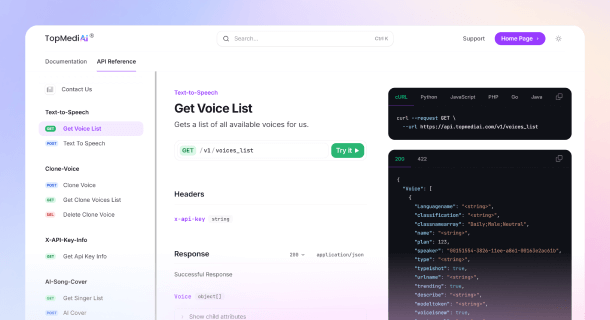
 TopMediai's API Documentation:
 Help&Support
 Popular Tips


 Join our Discord!

 AI Video Generator


TikTok has become a hub for creative expression, from quick comedy skits to storytelling clips. Yet, many viewers watch videos with the sound off, making it easy to miss the message if your content lacks captions. Understanding how to add captions on TikTok is essential not only for accessibility but also for increasing engagement and reaching a wider audience. This article walks you through the process of adding and editing captions, and shows tools that can make captioned TikTok videos easier to create.

- Part 1: What Are TikTok Auto Captions & Why They Matter
- Part 2: Step-by-step Guide to Adding and Editing Captions on TikTok
- Part 3: How to Create TikTok Videos with Captions Directly?
- Part 4: FAQs about Adding Captions on TikTok
Part 1: What Are TikTok Auto Captions & Why They Matter
1 What Are TikTok Auto Captions?
TikTok Auto Captions automatically transcribe the spoken words in your videos into on-screen text. When you enable this feature, TikTok’s speech recognition detects dialogue and displays it as captions, allowing viewers to read along while watching. You can review and edit these captions before posting to correct any errors or adjust their placement — saving creators time compared to typing subtitles manually.

2 Why TikTok Auto Captions Matter?
Boost Viewer Engagement
Many TikTok users watch videos in public spaces or with their sound off. Captions keep these viewers engaged by helping them follow your content without relying on audio. More engagement often means longer watch time and better algorithm performance.
Improve Accessibility
Captions make your videos inclusive for people who are deaf or hard of hearing. By turning on Auto Captions, you ensure your message reaches everyone, regardless of their hearing ability or viewing environment.
Enhance Clarity and Retention
Even with sound on, background noise or fast-paced speech can make dialogue hard to follow. Captions help clarify what’s being said, improving viewer comprehension and retention — especially for tutorials, storytelling, and educational clips.
Increase Discoverability
Captions can help TikTok’s algorithm better interpret your video’s topic. Keywords appearing in captions may boost visibility and relevance in search results, supporting your strategy for how to add captions on TikTok effectively.
Part 2: Step-by-step Guide to Adding and Editing Captions on TikTok
Adding captions on TikTok only takes a few minutes — and it can make a huge difference in how people engage with your content. Follow these simple steps to learn how to add captions on TikTok easily.
Step 1: Open TikTok and upload your video
Tap the + icon at the bottom of the screen to start a new post. You can either record a new clip or upload an existing one from your gallery.

Step 2: Go to the editing screen
Once your video is ready, tap Next to open the editing tools. You’ll see options like “Text,” “Stickers,” and “Captions.” Select Captions to begin.

Step 3: Generate auto captions
TikTok will automatically detect your speech and create captions for the video. Wait a few seconds for the transcription to finish — the text will appear on the screen in sync with your audio.

Step 4: Review and edit
Check the captions carefully for spelling or timing errors. If you spot mistakes, tap on the text or the edit (pencil) icon to make quick corrections. Accurate captions make your videos look more polished and professional.

Step 5: Customize the style
You can change how your captions look by adjusting font, color, or placement. Keeping them visible but not distracting helps viewers focus on both visuals and text.
Step 6: Preview and post
Play the video once more to ensure the captions match your audio perfectly. When everything looks good, tap Post — your captioned TikTok video is ready to share!
Quick tips to improve caption accuracy:
Speak clearly and at a steady pace.
Minimize background noise during recording.
Avoid interrupting words or heavy cross-talk.
Use short, simple sentences — they transcribe more accurately.
If you need stylized subtitles (branded fonts, animated text), add a Text layer in TikTok after enabling captions, or prepare hardcoded subtitles in your editing tool before uploading.
Part 3: How to Create TikTok Videos with Captions Directly?
For creators who want to make engaging short stories or TikTok videos with captions, TopMediai AI Video Generator offers a fast, creative, and fully online way to turn your ideas into motion. You can generate AI videos, add voiceovers, and automatically insert captions synced to the dialogue.
Secure Visit
Step 1: Write a short story prompt (one paragraph) and paste it into the Short Video Generator. You can also use a detailed scene-by-scene outline for better timing and storytelling.
Example single-paragraph prompt:
“A proud hare mocks a slow turtle before a race; the hare runs fast but naps mid-way, while the turtle keeps moving steadily and eventually wins.”
Or detailed scene mode (recommended for better pacing):
Scene 1 (4s): The hare laughs confidently at the starting line.
Scene 2 (5s): The race begins — fast zoom on the hare sprinting ahead.
Scene 3 (6s): The hare naps under a tree, while the turtle quietly walks past.
Scene 4 (5s): The crowd cheers as the turtle reaches the finish line first.
TopMediai automatically splits your story into scenes, suggests transitions, and assigns natural AI voices and background music.
Step 2: Adjust project settings such as aspect ratio (9:16 for TikTok, 16:9 for YouTube), duration, voiceover tone, and background track. You can also choose different video styles like Cinematic, Cartoon, or Vintage.

Step 3: Generate automatically — the tool animates each scene, syncs voiceovers to character speech, and inserts AI-generated captions that match your dialogue perfectly.
Step 4: Export your final AI-generated TikTok video in HD format, optimized for 9:16 portrait display. It’s ready to upload directly to TikTok, complete with subtitles, sound, and motion effects.
More about TopMediai AI Video Generator
If you want an easier and more creative way to add captions on TikTok, TopMediai AI Video Generator is worth exploring. It’s an online tool powered by Sora 2.0 and Veo 3, allowing you to turn text or images into cinematic TikTok videos with perfectly synced captions, voiceovers, and background music. From short motivational clips to storytelling scenes, it helps creators make engaging TikTok videos with captions — all directly in the browser, no app installation needed.

Text-to-video and image-to-video support for TikTok and other social media.
Allows visual style customization like Ghibli-Style, Meme, Movie, Dark Fantasy and more.
AI music generator to create soundtracks and ambient effects.
AI TTS voiceover with natural human-like tone.
Fast online rendering — no downloads or installations required.
Beginner-friendly interface designed for creators of all levels.
- Works fully online — no software installation required.
- Smooth workflow from idea to final TikTok upload.
- Accurate caption synchronization for dialogue-heavy stories.
- High-quality animation with realistic motion and lighting.
- Built-in AI tools for music, voiceover, and captions.
- 100+ visual and motion effects for creative flexibility.
- Works best with detailed, clear prompts.
- Requires a stable internet connection for rendering and export.
Part 4: FAQs about Adding Captions on TikTok
1 How can I customize captions when learning how to add captions on TikTok?
When you create TikTok videos with captions, you can adjust font, color, size, and placement. Customizing captions helps match your video’s style and ensures viewers can read them easily.
2 Can viewers turn off captions on TikTok videos with captions?
Yes. Viewers have the option to hide captions while watching your video. However, keeping captions on generally improves accessibility and engagement for those who prefer or need to watch silently.
3 Do captions affect the performance of TikTok videos?
Yes. Videos with captions often get higher watch time, retention, and engagement. Properly captioned TikTok videos can perform better in the For You Page algorithm and reach a broader audience.
4 Is there a character limit for captions when adding captions on TikTok?
While TikTok auto-captions do not have strict limits per segment, concise text ensures viewers can read each caption before the next line appears.
You May Also Like:
AI Logo Animation – Bring Your Brand Logo to Life with AI
Sora 2.0 — The Complete Guide to OpenAI’s Latest AI Video Generator
Conclusion
Adding captions on TikTok is no longer optional — it’s a way to make your videos accessible, engaging, and shareable. From understanding auto-captions to editing them for clarity, these steps ensure your audience can follow along whether the sound is on or off.
For creators looking for a smoother workflow, tools like TopMediai AI Video Generator can help streamline the process of creating TikTok videos with captions. Start adding captions today and see how it can boost your reach, engagement, and overall video performance.
Secure Visit

-

February 24, 2026
TopMediai Coupon Code: Save on All AI Tools with One Plan -

January 29, 2026
Super Bowl AI Voice: Create Viral Game-Day Content -

January 26, 2026
Best Santa Video for Kids in 2026: Create Magical Christmas Messages -

January 26, 2026
How to Use Grok Imagine: Free Tutorials & Best Alternatives -

January 26, 2026
Best 5 AI News Generators to Produce News Articles & Videos
Recent Blogs


