


 Video Generation Types
 Supported AI Models
 AI Video Effects



 AI Video Tools
 AI Music Tools
 AI Voiceover Tools
 More Features
 API for Music-related Services
 API for Voiceover-related Services

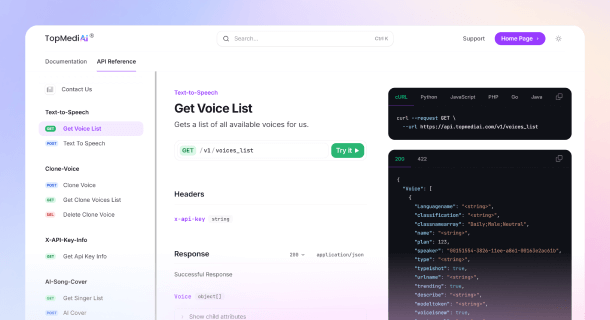
 TopMediai's API Documentation:
 Help&Support
 Popular Tips


 Join our Discord!

 AI Video Generator


Is your video too short fail to meet the requirements of Instagram? Is your video too short to capture the audience's interest? Is your video too short to answer customer questions in more detail? If you've experienced the above situation, please continue reading. You don't need to become a video editing expert to prolong your videos effectively.
In this article, we will provide you with simple and powerful methods to make a video longer.

- Part 1: 2 Core Strategies for Making Videos Longer
- 1. Prolong the video without changing the video material
- 2. Make videos longer by enriching video content
- Part 2: 5 Powerful Tools to Extend Your Videos [Proven 2026]
- Part 3: FAQs About Making a Video Longer
Part 1: 2 Core Strategies for Making Videos Longer
1 Prolong the video without changing the video material
If you wondering how to make a video longer without adding extra content, These methods will help:
Method 1: Slow Down the Video Speed
The most straightforward way to make a video longer is to slow its play speed. Video is composed of a series of consecutive still images, called frames. When the speed is reduced, each frame in the picture is displayed for a longer time, thus making the video longer. For example, setting the speed to 0.5x will double the video's length.
How to do it?
Step 1: Import the video into the video editing software and select the clip on the timeline.
Step 2: Find the "Speed" or "Adjust Speed" tool and lower the speed.
Step 3: Preview the clip to ensure smooth audio and video playback.
Method 2: Create a loop video to make videos longer
Looping video means playing the video several times. It is especially suitable for use as a background, product display, or social media video. Videos can be continued easily by playing repeatedly. You can create looping videos using video editing software or online video looping tools.
How to do it?
Step 1: Import the video into the video editing software and select the original clip on the timeline.
Step 2: Copy the clip and paste it after the original clip on the timeline.
Step 3: Repeat the pasting process until the desired total duration is achieved.
Step 4: To make the loop playback smoother, you can add a fade-in/fade-out transition effect between the end of one clip and the beginning of the next.
2 Make videos longer by enrich video content
If you want to enrich your video content, you can try the following tips.
Method 1: Add an Intro and Outro to Increase Video Length
Intro and outro can make a video 5 to 10-second longer. The intro placed at the beginning of the video, includes the channel name, logo, and signature theme music or visual style typically. The outro placed at the end of the video, summarizes the content and usually includes a call to action, such as an invitation to like, subscribe, or visit a link.
Adding professional intro and outro is an effective way to continue your video, increase audience engagement, and create memorable moments.
Method 2: Add more material to existing videos
To extend the video length, you can enrich it with more content. You can either obtain free audio, images, and video resources online, or use AI tools to quickly generate the materials you need. There are already many mature AI platforms available now, so you can freely choose the one you like.
Method 3: Use an AI video extender to make a video longer
AI video extenders are innovative tools that use artificial intelligence to prolong videos content efficiently. Unlike simple techniques that slow down or loop video playback, these advanced systems analyze the original footage and generate new, seamless content that naturally extends the video's flow.
Next, we will introduce you to 5 simple and powerful AI video extenders.
Part 2: 5 Powerful Tools to Extend Your Videos [Proven 2026]
1 TopMediai
If you want to make videos longer easily without compromising your viewing experience, TopMediai AI Video Extender is the perfect choice.
This AI tool automatically extends video clips while maintaining smoothness and quality. Whether you’re working with any style of the video, TopMediai ensures fluid motion and visual consistency.
Most importantly, it can efficiently generate extended videos in minutes or even seconds, thus achieving the goal of making videos longer.

Low barrier to entry, automatically prolong videos without manual editing.
Expanded video clips are logically clear and visually coherent.
Maintains smooth movement, consistent lighting, and consistent style within video clips.
High-quality output, adaptable to various scenarios.
Fast rendering and video production efficiently.
- User-friendly interface, suitable for beginners.
- 100+ video effects for seamless transitions.
- Fast processing speed, high-quality generation.
- Completely copyright-free content, supports commercial use without watermark.
- Dependent on network, cannot be operated offline.
- Export resolution may vary.
How to use TopMediai AI Video Extender?
Step 1: Access the TopMediai AI Video Extender interface.
Secure Visit
Step 2: Click the "Upload" button to import the video you want to extend (supports MP4 and MOV formats, maximum file size 50MB, duration under 30 seconds).
Step 3: Describe the scene you want to continue playing and set the parameters.

Step 4: Click the "Generate" button and wait for AI processing to complete (usually takes 1-3 minutes).
Step 5: Preview the prolonged video and make minor adjustments as needed. Then download the completed video and share it.
Original video:
Extended Video:
You may also like: Top 6 AI Video Extenders to Seamlessly Extend Your Videos in 2026.
2 Freepik
Site: https://www.freepik.com/pikaso/video-extender
Freepik has powerful video extension capabilities. It can generate additional footage that matches the style and motion logic of the original video, achieving seamless extension. This tool is not only easy to use but also meets professional-level needs.

Supports customizable text prompts for seamless extension.
Video quality can be improved and smoothness optimized during extension.
Integrates with other website tools for adaptability to various scenarios.
- Simple to operate and suitable for professional needs.
- Able to improve video resolution and optimize image quality.
- No professional skills required, low learning curve.
- Cannot be used without a stable network.
- Uploading videos carries a risk of privacy breaches.
- Output quality is unstable.
How to Use Freepik?
Step 1: Register a Freepik account and find and enable the video extension feature.
Step 2: Upload the video you want to prolong (clip length no more than 30 seconds, file size no more than 200MB).
Step 3: Enter a text description and select the desired extension number of seconds.
Step 4: Click "Generate" then preview and download the extended video.
3 Pixop
Site: https://www.pixop.com/
Pixop is an AI tool primarily designed for professional-grade video processing. Its video extension function relies on AI frame interpolation technology to automatically generate smoothly connected new frames between the original video frames, achieving natural extension and meeting the professional needs of streaming media or archived content.

Automatically adds frames between existing ones to make clips longer smoothly.
Optimizes video resolution and quality when continuing video playback, improving overall video quality.
Flexible cloud-based operation meets the needs of various scales of use cases.
Strong security features.
- Advanced AI frame interpolation technology.
- Suitable for professional processing such as video restoration and noise reduction.
- Flexible export settings and resolution.
- Less beginner-friendly, the operating threshold is relatively high.
- There is no free trial, usage is priced per export (pay-as-you-go).
How to Use Pixop?
Step 1: Sign up at Pixop and upload your video.
Step 2: Choose AI Frame Interpolation or other enhancement filters.
Step 3: Adjust duration or frame rate to prolong the video length.
Step 4: Let Pixop process the video in the cloud.
Step 5: Download the high-quality extended output.
4 GoEnhance
Site: https://www.goenhance.ai/ai-video-extender
GoEnhance is an AI video processing tool that emphasizes high compatibility and high-quality output. Its video extension features support processing various common video formats.
Users can customize the duration and style mode, and precisely control the generated content through text prompts. The generated video clips can seamlessly integrate with the original video, adapting to various scenarios such as social media short videos, professional production, and home video restoration.

The generated clips blend seamlessly with the original video, achieving smooth expansion.
They offer flexible customization, supporting custom durations and various style modes such as film and animation.
They maintain consistency in lighting, motion, and resolution.
- High-quality output and fast generation speed.
- Diverse styles to suit different creative needs.
- High degree of creative control.
- Limited options for prolonging duration.
- The free version may have usage restrictions.
How to Use GoEnhance?
Step 1: Register a GoEnhance account and find and enable the video extension feature.
Step 2: Upload the video you want to continue.
Step 3: Enter a text description to determine the style and duration.
Step 4: Click "Generate" then preview and download the extended video.
5 Jogg.Ai
Site: https://www.jogg.ai/ai-video-extender/
Jogg.Ai is a professional-grade AI video extender that emphasizes convenience and efficiency. It helps creators easily make videos longer, adapting to scenarios such as social short videos and advertisements.

Highly adaptable, supporting multiple formats.
User-friendly with clear extension settings.
Natural and seamless generation results, ensuring overall video viewing quality.
Efficient generation and wide adaptability.
- Simple user interface, compatible with most everyday short video materials.
- High-quality generation with smooth and natural transitions.
- High generation efficiency.
- The parameter selection is too limited.
- It relies too heavily on precise keyword suggestions.
How to Use Jogg.Ai?
Step 1: Register a Jogg.Ai account and find and open the video extension feature.
Step 2: Upload the video you want to extend.
Step 3: Describe the style, scene, or plot of the extended video, and choose to continue it by 5 or 10 seconds.
Step 4: Click "Generate" then preview and download the extended video.
Part 3: FAQs About Making a Video Longer
1 How to make a video longer without losing quality?
Methods such as slowing down the video or creating a looping video are all possible. However, the easiest way is to use AI tools to continue your video.
2 Can I choose how long to prolong the video when using AI tools?
Of course. In most cases, you can choose to extend the video by 4-10 seconds.
3 What can I use extended videos for?
Great for increasing watch time on TikTok, Instagram Reels, YouTube Shorts, marketing ads, or creative projects.
4 How can I make videos longer on my iPhone?
Open iMovie, upload the video clip to the iMovie timeline, slow down the video, copy the video clip, or add more video footage.
5 What are the video length requirements for commonly used social media platforms?
Different social media platforms have different requirements for video length. For example, Instagram Stories videos must be between 3 and 15 seconds long; IGTV videos must be between 15 seconds and 10 minutes long.
Conclusion
Whether you're looking to meet platform requirements, enhance storytelling, or boost viewer engagement, learning how to make your video longer is an essential skill for today's content creators. From simple techniques like slowing down playback and adding intro/outro scenes, to leveraging powerful AI video extenders like TopMediai, Freepik, and Pixop, there are solutions for every need and skill level to extend videos.
Try our AI video extender below today to make a video longer that capture and keep your audience's attention.
Secure Visit

-

February 24, 2026
TopMediai Coupon Code: Save on All AI Tools with One Plan -

January 29, 2026
Super Bowl AI Voice: Create Viral Game-Day Content -

January 26, 2026
Best Santa Video for Kids in 2026: Create Magical Christmas Messages -

January 26, 2026
How to Use Grok Imagine: Free Tutorials & Best Alternatives -

January 26, 2026
Best 5 AI News Generators to Produce News Articles & Videos
Recent Blogs


