


 Video Generation Types
 Supported AI Models
 AI Video Effects



 AI Video Tools
 AI Music Tools
 AI Voiceover Tools
 More Features
 API for Music-related Services
 API for Voiceover-related Services

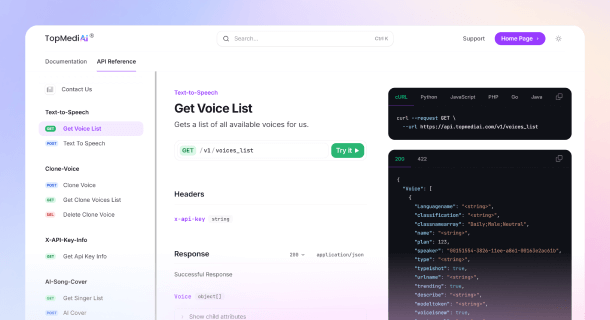
 TopMediai's API Documentation:
 Help&Support
 Popular Tips


 Join our Discord!

 AI Video Generator


Time lapse videos are a powerful way to capture change, movement, and the passage of time in just a few seconds. But creating them traditionally often requires hours of footage and complicated editing.
In 2026, AI time lapse video makers offer a smarter solution. These tools let you generate time lapse videos from photos, videos, or even just text prompts—quickly and creatively. This article introduces the best AI time lapse video makers available today, along with tips and creative ideas to help you get started.

Table of Contents
- Part 1: Best Time Lapse Video Makers in 2026
- 1. TopMediai AI Video Generator - Best AI Time Lapse Video Maker
- 2. Clideo – Simple Online Tool for Quick Time Lapse Videos
- 3. Kapwing – Versatile Time Lapse Video Editor
- Part 2: Tips for Making Better AI Time Lapse Videos
- Part 3: Creative Use Cases for AI Time Lapse Videos
- Part 4: FAQs about Time Lapse Video Makers
Part 1: Best Time Lapse Video Makers in 2026
1 TopMediai AI Video Generator - Best AI Time Lapse Video Maker
TopMediai AI Video Generator is a versatile tool that allows users to transform both images and text into dynamic videos effortlessly. Whether you're looking to create time lapse videos from a series of photos or generate engaging visuals from a descriptive text prompt, this platform simplifies the process.
By uploading a single image and providing a brief description, users can produce high-quality AI time lapse videos with smooth transitions and professional effects. Additionally, TopMediai offers various customization options, including camera movements and scene transitions, to enhance the visual appeal of your AI-generated videos.

Supports both image and text-to-video creation.
Offers customizable camera movements for dynamic visuals.
Features an intuitive interface suitable for beginners and professionals alike.
Provides fast processing speeds, producing videos within minutes.
Enables easy sharing and downloading in multiple formats.
No software download required; works directly in the browser.
How to Make AI Time Lapse Videos with TopMediai AI Video Generator?
Step 1: Go to the TopMediai AI Video Generator dashboard to begin creating your AI time lapse video.
Secure Access
Step 2: Choose your video generation mode:
① Text to Video: Enter a detailed description of the scene you want to turn into a time lapse. For example:
“Create a time lapse video showing clouds drifting across a mountain landscape from sunrise to sunset. Include smooth transitions and dynamic lighting changes to capture the passage of time.”

② Image to Video: Upload a high-quality photo related to your time lapse idea, such as a landscape or cityscape. Add a description like:
“Generate a vibrant AI time lapse video with gradual color shifts and movement, illustrating a day-to-night transformation.”

Step 3: Click “Generate” and let the AI process your input to produce a stunning AI time lapse video with smooth animations and realistic effects.
Step 4: Preview the video, make any adjustments if necessary, then export and download your high-resolution AI time lapse video.
Step 5: Share your video on platforms like YouTube, TikTok, or Instagram to showcase your creative time lapse work and engage your audience.
2 Clideo – Simple Online Tool for Quick Time Lapse Videos
Site: https://clideo.com/time-lapse-creator
Clideo provides a straightforward web-based time lapse video maker. It supports uploading photos and videos to speed up playback easily, making it great for casual creators and beginners. Though not AI-powered, Clideo’s clean interface and fast processing make it a reliable choice for creating basic time lapse videos online.

Supports uploading photos and videos.
Enables basic speed adjustment to create smooth time lapse effects.
Provides fast video processing and immediate previews.
Compatible with various media formats including JPG, PNG, MP4, and more.
How to Use Clideo Time Lapse Creator:
Step 1: Open Clideo’s Time Lapse Creator tool in your browser—no installation required.
Step 2: Upload the photos or video clips you want to speed up into a time lapse format.
Step 3: Adjust the playback speed slider to achieve the desired time lapse effect.
Step 4: Preview the video to check for smoothness and correct pacing.
Step 5: Export the final video and download it to your device for easy sharing.
3 Kapwing – Versatile Time Lapse Video Editor
Site: https://www.kapwing.com/tools/adjust/speed/time-lapse
Kapwing’s Speed Adjustment Tool is an easy-to-use online editor that helps you make time lapse videos by speeding up existing footage. It supports a wide range of video formats and offers precise control over playback speed, allowing you to customize the pace of your time lapse video easily. Beyond speed adjustment, Kapwing includes simple editing features such as trimming, cropping, and adding text.

Supports a wide range of video formats for flexible input options.
Allows precise speed control, from slow motion to fast time lapse effects.
Includes basic video editing tools like trimming, cropping, and adding text.
Offers collaboration features for teams working on video projects.
Provides export options in different resolutions.
How to Use Kapwing to Make Time Lapse Videos:
Step 1: Navigate to Kapwing’s Speed Adjustment Tool online and upload your original video file.
Step 2: Use the speed control slider to increase the playback speed to your preferred time lapse pace.
Step 3: Optionally, trim unwanted sections or add text and effects using Kapwing’s built-in editor.
Step 4: Preview your edited time lapse video to ensure it looks just right.
Step 5: Export and download your completed time lapse video ready for sharing or posting.
Part 2: Tips for Making Better AI Time Lapse Videos
Want to make your AI time lapse video more eye-catching? Here are some quick tips to get better results with any time lapse video maker.
1. Focus on Motion
Scenes with clear movement—like clouds drifting, flowers blooming, or crowds walking—work best. AI time lapse videos need visual change to look dynamic.
2. Use Clear Prompts or High-Quality Input
When using an AI time lapse video generator, be specific with your text prompts. Instead of “sunset,” try “a sunset over the ocean with moving waves and glowing clouds.” If uploading video or images, make sure they’re sharp and well-lit.
3. Keep It Short
For social platforms, aim to make time lapse videos between 5–15 seconds. Shorter clips grab attention and loop well on TikTok or Reels.
4. Play With Speed Settings
Most AI time lapse video makers let you adjust playback speed or time intervals. If your scene has fast movement (like traffic or people), a slower speed helps viewers catch the detail. For slower changes (like a sunset), speed it up to avoid the video feeling too long. Test different speeds before exporting to find the smoothest result.
5. Add Music with the Right Tools
Background music can make your AI time lapse video more engaging. After generating your visuals, try adding a soundtrack that matches the mood—calm, cinematic, or upbeat. Tools like the TopMediai AI music generator let you create custom background music in seconds, perfectly tailored to your video’s vibe.
Part 3: Creative Use Cases for AI Time Lapse Videos
AI time lapse videos aren’t just for watching clouds move—they can be used in all kinds of creative ways. Whether you’re a content creator, educator, or marketer, there’s a time lapse idea for you. Here's a quick look at how different use cases match different styles of AI time lapse video:
| Use Case | Description | Best Type of AI Time Lapse |
|---|---|---|
| Travel Recap | Show the change from morning to night at a landmark or across a city | AI time lapse from video clips or image sequences |
| Art or Drawing Process | Turn a long drawing or painting session into a 10‑second visual story | Time lapse from recorded screen or AI-generated animation |
| Nature Transformation | Display how flowers bloom, trees grow, or seasons shift | AI-generated visuals with prompt‑based animation |
| Fantasy or Sci‑Fi Scenes | Create surreal worlds that evolve over time | Prompt‑based AI time lapse with creative scene descriptions |
| Product Packaging or Assembly | Great for ecommerce or brand videos to show speed & process | Time lapse from real footage, sped up using AI tools |
| Social Media Hooks | Quick visual loops to attract attention on TikTok or Instagram | Short AI time lapse video (5–10 sec) with music overlay |
Part 4: FAQs about Time Lapse Video Makers
1 Can I customize the speed and style by using a time lapse video maker?
Most time lapse video makers allow you to adjust parameters like speed, frame interval, and visual style, giving you control to tailor the time lapse video to your needs.
2 Do time lapse video makers require special hardware?
No, many time lapse video makers are web-based platforms, meaning you can create time lapse videos directly from your browser without installing anything.
3 Can AI time lapse video makers work with any type of footage?
Most AI time lapse video makers support various input formats including photos, videos, and even text prompts. This flexibility lets you create unique AI time lapse videos from almost any source material.
4 Is it possible to make an AI time lapse video without any technical skills?
Absolutely. AI-powered time lapse video makers are designed for users of all skill levels, allowing anyone to make time lapse videos quickly without needing advanced editing knowledge.
5 Are AI-generated time lapse videos suitable for professional use?
Yes, many AI time lapse video makers now offer high-quality output suitable for marketing, presentations, and even filmmaking, though some professionals may still prefer manual control for complex projects.
You May Also Like:
Podcast Intro Maker: Best Tools & Tips to Create Intros [2025]
How to Make AI Motivational Videos Using AI Motivational Video Generators
Faceless AI Video Generator: How to Create Faceless Videos with AI
Conclusion
AI time lapse video makers have simplified what used to be a time-consuming editing task. With just a few clicks, you can now generate visually compelling time lapse videos from text, images, or raw footage—no advanced skills needed.
If you’re looking to try a fast and flexible AI time lapse video maker, tools like TopMediai AI Video Generator are a great place to start. Click and try it now.
Secure Visit

-

February 24, 2026
TopMediai Coupon Code: Save on All AI Tools with One Plan -

January 29, 2026
Super Bowl AI Voice: Create Viral Game-Day Content -

January 26, 2026
Best Santa Video for Kids in 2026: Create Magical Christmas Messages -

January 26, 2026
How to Use Grok Imagine: Free Tutorials & Best Alternatives -

January 26, 2026
Best 5 AI News Generators to Produce News Articles & Videos
Recent Blogs


