

 Up to 76% off with code




 Join our Discord!
808 BASS
808 weight for trap beats
Ask for sustained sub notes, restrained slides and sparse drums. Leave space between phrases so the low end has room to land.
After Hours 808Use the AI bassline generator to explore 808, synth and electric bass ideas. Describe your groove, create an instrumental, then refine the bass in your mix.


Start with the role of the bass: a sustained 808, a tight offbeat pulse, a syncopated electric groove or a soft foundation. These directions guide an instrumental arrangement; an isolated bass part requires a separate stem workflow.
Ask for sustained sub notes, restrained slides and sparse drums. Leave space between phrases so the low end has room to land.
After Hours 808
Describe short synth notes between the kick hits, a steady pulse and restrained chords. Compare the groove in context before choosing a version.
Neon Offbeat
Specify fingerstyle attack, muted notes and rhythmic rests. Keep the supporting arrangement light so the electric bass carries the movement.
Pocket Change
Ask for a warm, muted tone and a simple repeating phrase. Use fewer notes and softer drums when the track needs to sit beneath a quiet scene.
Window SeatStart with a clear description, keep vocals off and listen in context. If your project needs a different output, compare bassline creation workflows before choosing between a full instrumental, an isolated bass stem and editable MIDI.
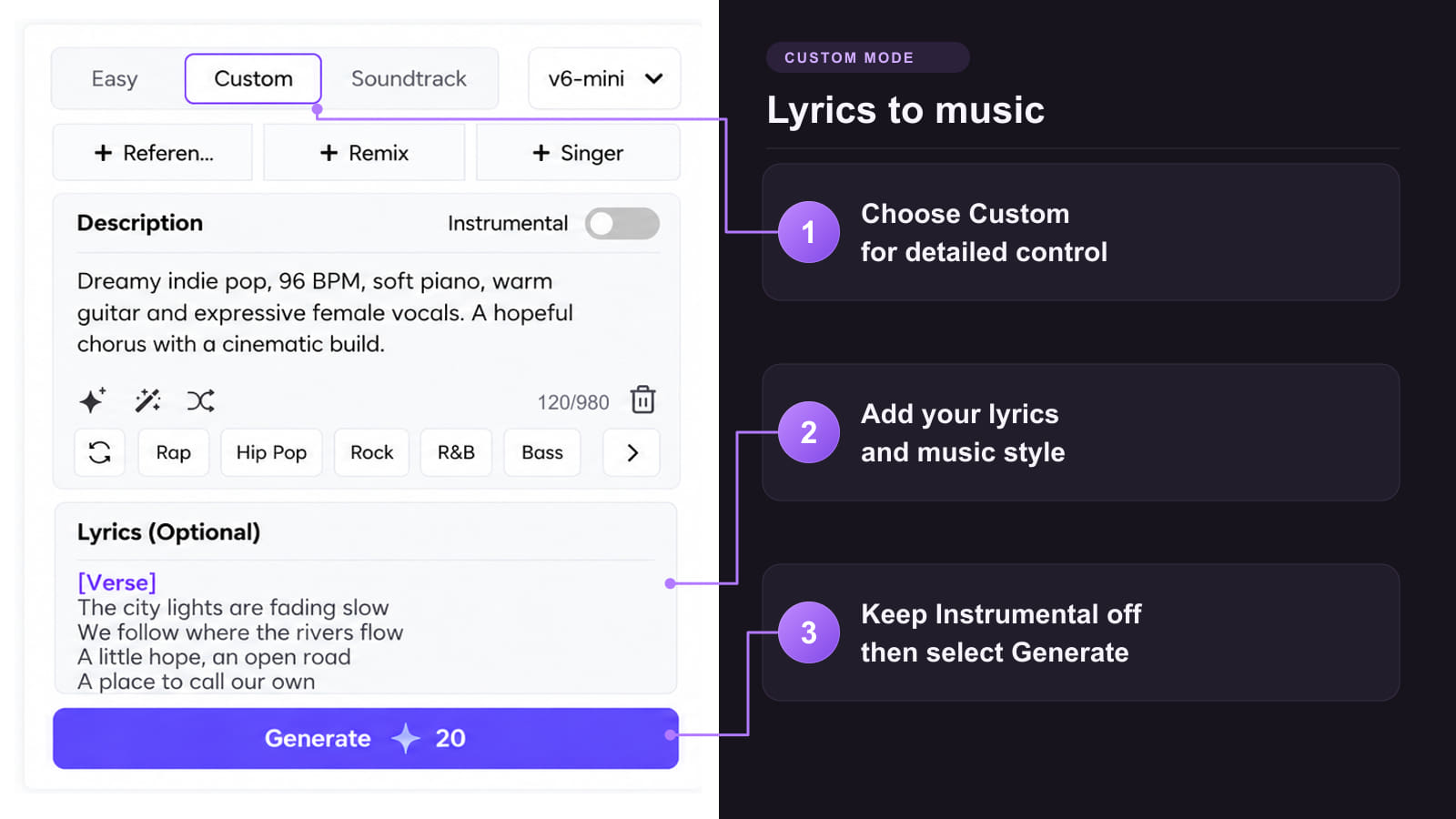
Method 1: Shape an instrumental in Custom mode
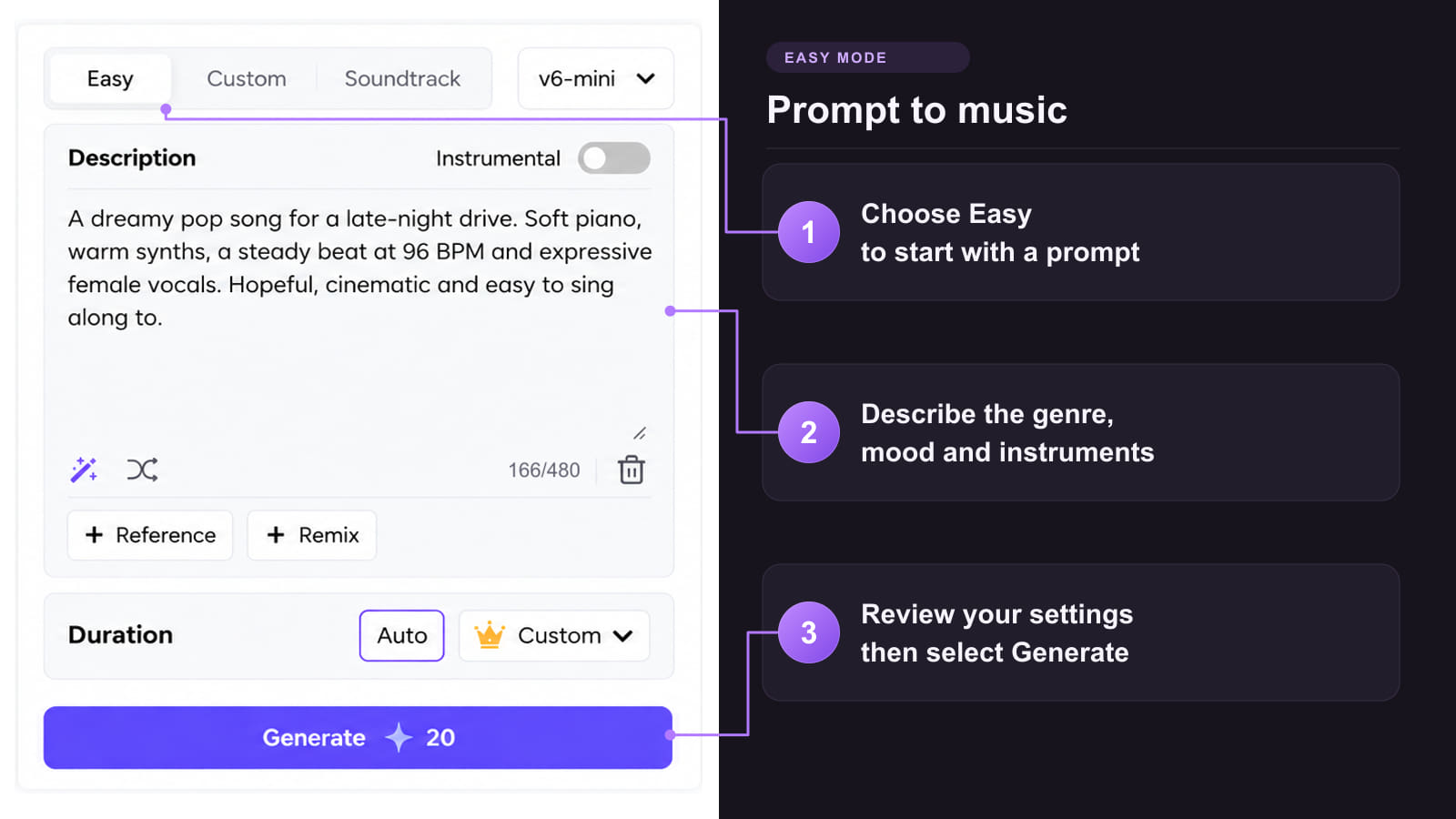
Method 2: Try a bass prompt in Easy mode
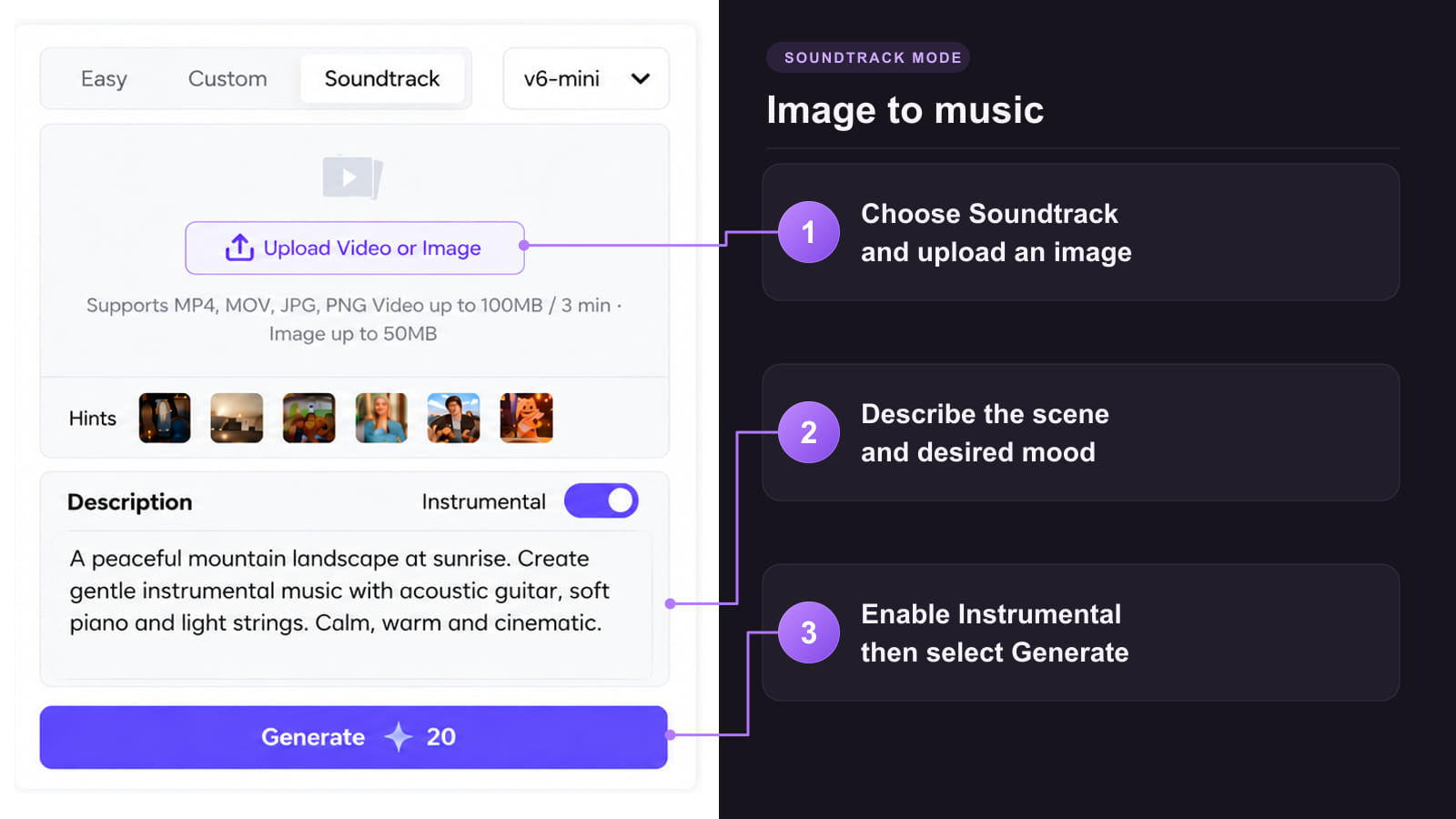
Method 3: Match a visual scene with Soundtrack

A useful bass prompt describes what the low end should do. Start with one musical role, then refine what you hear.
 Choose the bass character
Ask for rounded synth bass, sustained 808 sub, muted electric bass or a brighter fingerstyle attack. Name the sound you need rather than piling on unrelated genres.
 Describe the rhythmic pocket
Specify offbeat notes, a sparse half-time groove or syncopated funk. As an arranging choice, leave rests where a busy kick needs space.
 Control the supporting arrangement
Ask for restrained chords and a lighter upper register when the bass needs attention. A sparse arrangement also makes unwanted extra parts easier to hear.
 Treat key and BPM as targets
Include a target key and tempo, then check the generated audio before combining it with an existing session. Do not assume exact chord-by-chord synchronization.
 Move from ideas to production
Decide whether you need a full instrumental, an isolated audio stem or editable notes. Generation, stem separation and audio-to-MIDI conversion serve different tasks.
Use the tool that matches your next task. These are separate workflows with their own access requirements; they are not built-in controls of a bass sequencer.

Create a short visual hook from your finished bass-led track.
Explore Tool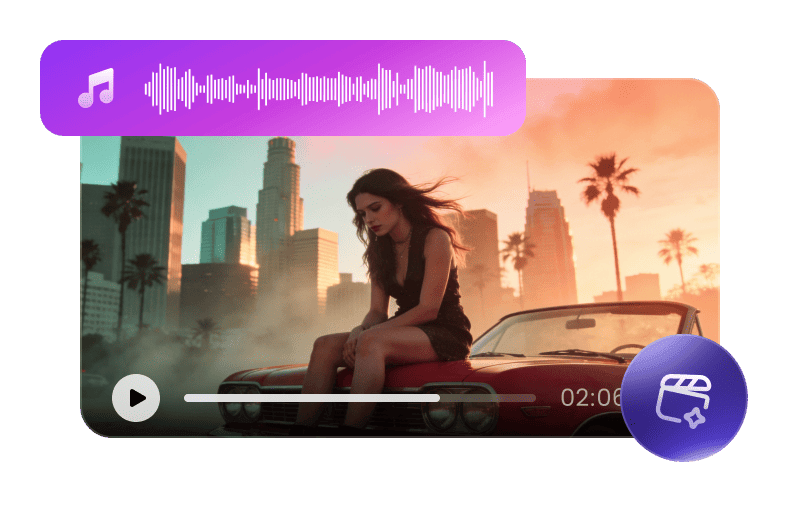
Pair your instrumental with a visual concept for a music video.
Explore Tool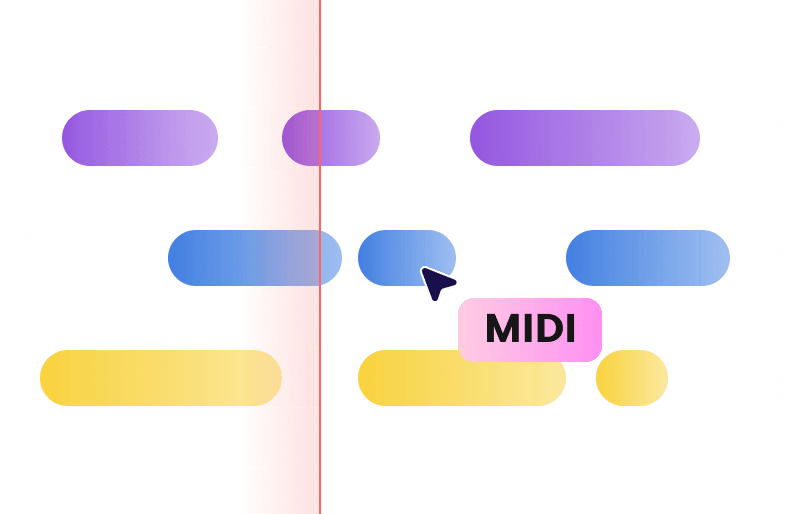
Explore audio-to-MIDI conversion when you need editable notes. Check the transcription before arranging.
Explore Tool
Use Multitrack mode to separate bass from a mixed track. Listen for bleed and artifacts before reusing the result.
Explore Tool
Explore a separate photo performance workflow when your project includes a vocal song.
Explore Tool
Explore a different vocal version for a separate song project using authorized audio and voices.
Explore ToolChoose a creation tool or learn how a workflow fits your project.
Answers about audio, MIDI, bass-only parts and fitting the groove into a track.
Try a Bass IdeaIt depends on the tool: some create editable MIDI patterns, while others generate audio. TopMediai starts with a music prompt to create an instrumental arrangement. Use a separate stem or MIDI workflow when you need an isolated part or editable notes.
Check the current trial and credits in the TopMediai app before generating. Trial access, downloads and tool availability can differ by account. Do not assume that a free trial includes unlimited generation or commercial use.
Do not assume that Instrumental means bass only: it removes the request for vocals, while the arrangement may contain other instruments. For an isolated bass part, use a separate stem-splitting workflow and review the separation quality.
A key, chord progression and rhythmic description can guide an idea, but exact synchronization should be checked in your session. This page does not promise automatic MIDI chord following or kick-aware note placement in TopMediai. For strict alignment, edit and audition the part in a DAW.
Audio generation and MIDI note generation are different workflows. TopMediai provides a separate Audio to MIDI tool; check its current input and export options. Review the resulting pitches, note lengths and timing rather than treating a transcription as a perfect copy.
Name one bass sound and describe its behavior. Try sustained 808 notes with restrained slides, short offbeat synth notes, or fingerstyle electric bass with muted ghost notes. Add a target tempo, key and sparse accompaniment, then compare what the model produces.
Use a MIDI editor or DAW when you need to change individual pitches, note lengths or velocities. TopMediai can help you develop audio ideas, while a MIDI editor gives you note-level control. Review any audio-to-MIDI transcription before editing or arranging it.
Use a supported audio download for an audio track, or a supported MIDI export from a separate conversion workflow for an instrument track. Align tempo and key, trim the phrase and test the loop boundary in your DAW. Export options depend on the tool and account.
Split stems when you need the bass apart from a full mix. TopMediai Stem Splitter offers a Multitrack mode that includes bass; the two-track vocal/accompaniment mode does not isolate bass. Check the separated audio for bleed, then trim and audition a usable phrase.