

 Up to 76% off with code




 Join our Discord!

 AI Music Generator


Compare Kpop song generators for lyrics and music by the inputs they accept, the vocal drafts they produce, and the options available for further editing. This article compares TopMediai, Suno and FreeMusic to help you choose a workflow for an original K-pop demo.
Secure Visit
- Part 1: Compare Kpop Song Generators for Lyrics and Music
- Part 2: Choose a Tool for Your Starting Point
- Part 3: Compare the Results Before Choosing a Take
- Part 4: FAQs About Comparing Kpop Music Tools
Part 1: Compare Kpop Song Generators for Lyrics and Music
1 TopMediai AI Music Generator
When comparing Kpop song generators, TopMediai AI Music Generator accepts supplied lyrics and song descriptions. TopMediai produces Kpop-style song drafts from text or lyrics, with a separate visual-input workflow for soundtracks. You can customize genre, instruments, mood, and even select the AI singer's voice. You can start with a description or bring your own lyrics. For a direct creation workflow, use the dedicated kpop song generator.

Versatile and adaptable to various Kpop music styles and genres.
Commercial usage depends on the applicable plan and track license.
Automatically generates melodies and harmonies ideal for Kpop compositions.
It offers three creation modes: lyrics/image/prompt to music.
For a visual presentation after the song is ready, explore lyric videos.
For more concept ideas, explore song themes.
For a different musical direction, explore anthem-style songs.
Create Kpop melodies from lyrics, turning your words into catchy tunes.
Describe tempo, mood, and instrumentation to guide your Kpop track.

 Listen to this Kpop song made with TopMediai!

How to try TopMediai for a K-pop demo?
Step 1: Visit the dashboard of TopMediai AI Music Generator.
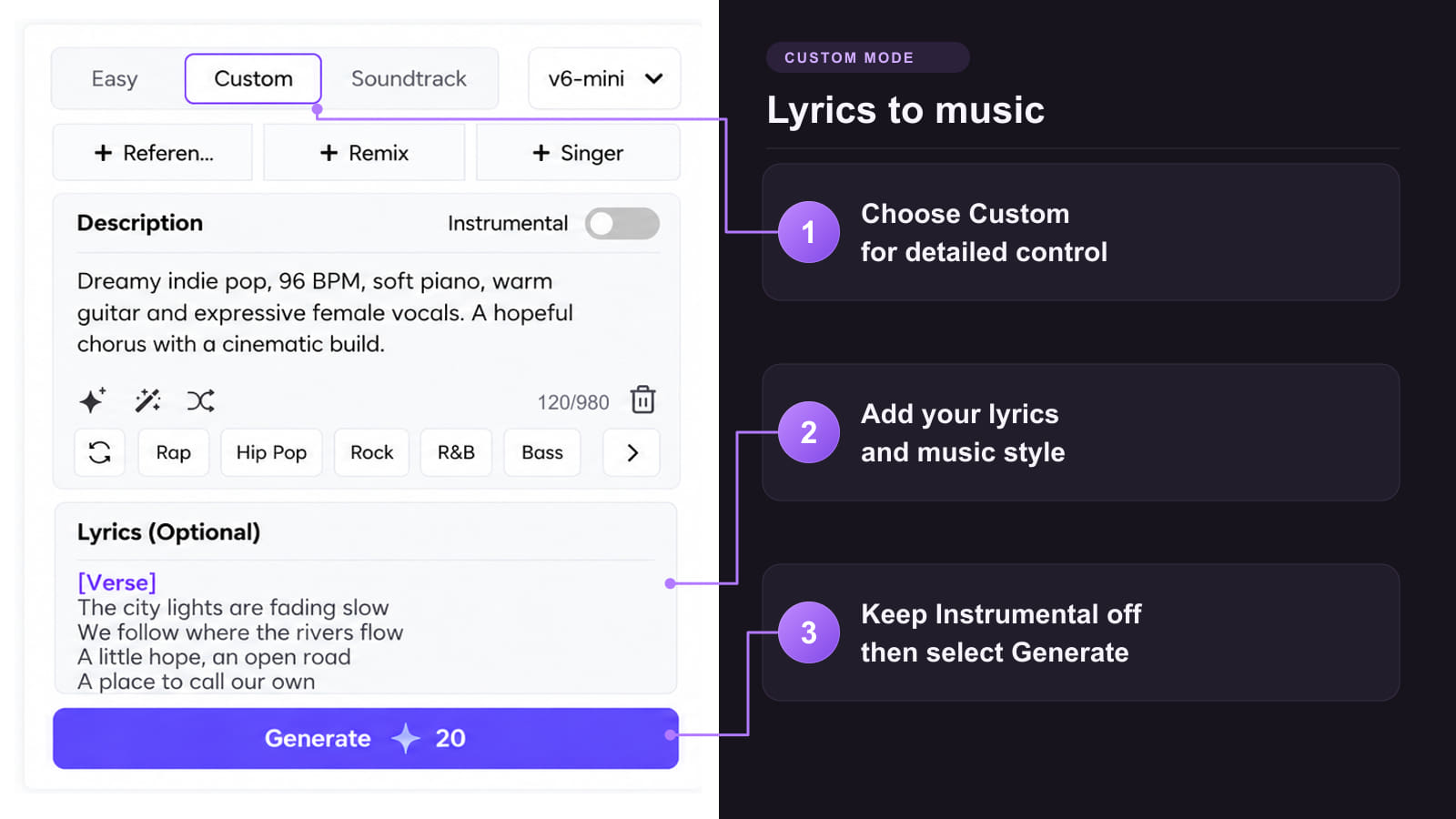
Step 2: Choose how you want to create your Kpop song from text, using Custom mode for lyrics or Easy mode for a prompt.
1. Lyrics to Music: In Custom mode, paste original lyrics or use the available lyrics assistance to develop a draft.
Enter your inspiration and needs in the lyrics creation box. For example: 'Craft lyrics evoking heartfelt stories and catchy choruses typical of Kpop hits.' Review the draft before generating the sung version.
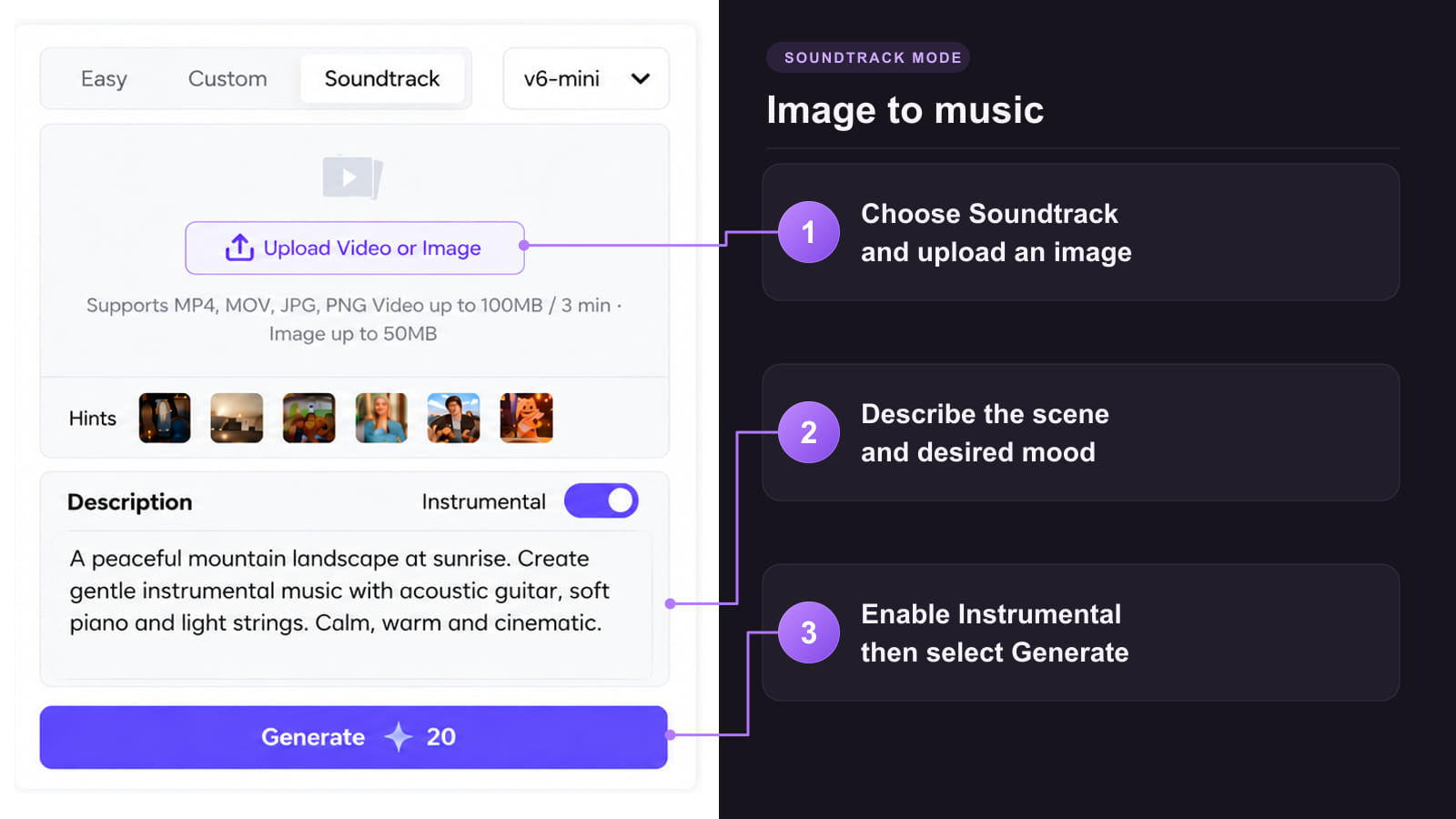
2. Image to Music: Use Soundtrack mode to turn the mood of an image into music. Ideal for album art, posters, or storytelling visuals.
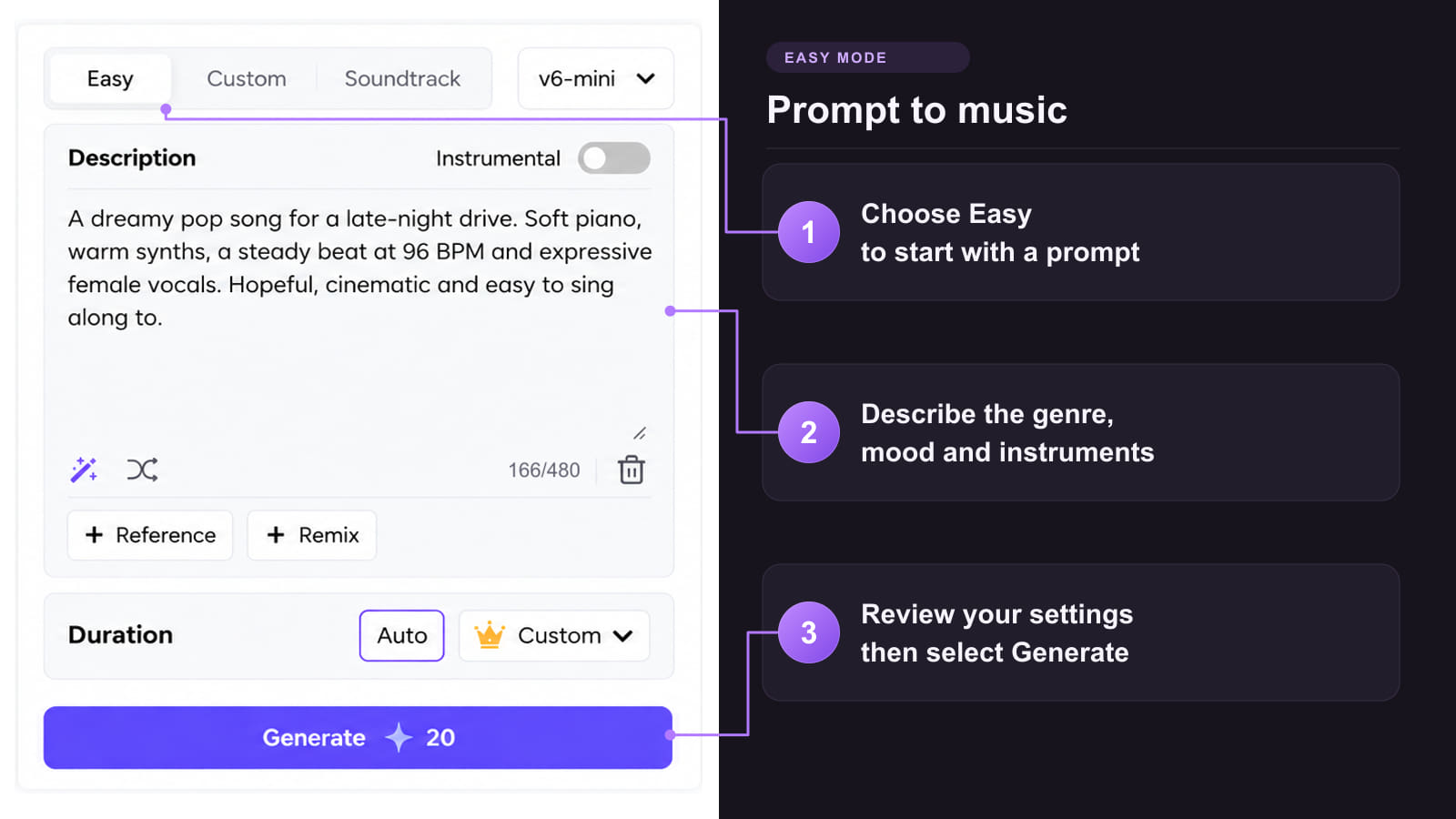
3. Prompt to Music: Use Easy mode to describe the genre, instruments and mood. Example prompt: upbeat Kpop, energetic beats, bright synths, polished production.
4. Reference Audio: Use the available reference-audio workflow to guide a new track with an audio file. Describe the style you want and compare the generated result.

Step 3: Choose an available singer or vocal option for the demo. Keep Instrumental off for a sung track, then select Generate.
Step 4: Download the music made from text. Review the available download options for the generated track and your account.
Now, your text to Kpop song generation is done. Use the available Extend or Remix options when you want to develop the draft further.
Step 5: Check the MIDI and chord-sheet export options available for further work in a DAW. Audio to MIDI is a separate conversion workflow; review the converted notes before using them in an arrangement.
Tips: Compare the chorus entrance, lyric clarity and section changes before keeping a take. Keep the same short lyric and musical brief when trying another tool.
Secure Visit
- Commercial use is subject to the applicable plan and track license.
- Multilingual and genre-diverse Kpop song generation.
- Explore different musical styles, including lofi .
- MIDI export options for further arrangement work.
- Duration options depend on the selected model and creation mode.
- Requires an internet connection.
2 Suno
Suno offers complete songs from a description or supplied lyrics, alongside tools for extending, remixing and editing music. It is worth considering when the next step after a first demo is further arrangement work. For a Korean-language project, compare a short vocal draft before committing to a full arrangement.
How to compare it fairly
Step 1: Use the same short lyric and musical brief used for the TopMediai draft.
Step 2: Generate a vocal version and listen for lyric changes, phrase endings and the contrast between verse and chorus.
Step 3: Check which editing and export options are included in the selected plan before building the rest of the project around them.
- Exploring complete vocal demos and later editing in a music workspace.
- Trying alternative treatments of the same lyric and concept.
- Editing and export access depend on the available plan.
- A fuller production is not evidence that the lyric delivery is better.
3 FreeMusic
FreeMusic provides a dedicated K-pop page with a style prompt, vocal choices, an Instrumental Only switch and concept starters. Its published workflow also describes prompt and lyric input. It offers a more genre-focused place to explore a direction before committing to a detailed arrangement.
How to compare it fairly
Step 1: Enter the same musical brief. Keep Instrumental Only off when comparing vocal demos.
Step 2: Keep the requested mood and vocal direction consistent with the other tools. A prompt for a gentle ballad cannot fairly be compared with a dance-track brief.
Step 3: Preview the result and inspect the current download and account conditions. Judge the audio rather than assuming the genre label guarantees the desired sound.
- Exploring K-pop concept starters and a visible style prompt.
- Switching between a vocal brief and an instrumental direction.
- Genre-specific marketing does not replace a listening check.
- Confirm export availability and applicable usage terms for the selected account.
Compare the Workflows at a Glance
| Workflow | TopMediai | Suno | FreeMusic |
|---|---|---|---|
| Starting point | Easy for a prompt; Custom for supplied lyrics | Prompts or supplied lyrics | Style prompt and published lyric-input workflow |
| Creative direction | Describe style, instruments and vocals; use a separate Soundtrack mode for visuals | Describe a song, then explore available editing tools | Try K-pop concept starters and vocal or instrumental options |
| After the first take | Explore available Extend and Remix tools | Review available song-editing and export access | Preview the result and check available downloads |
| Before choosing | Check account credits, downloads and track license | Check plan-specific editing, downloads and rights | Check account access, downloads and applicable terms |
Secure Visit
Part 2: Choose a Tool for Your Starting Point
Choosing between Kpop song generators for lyrics and music is easier when the starting material is fixed. Use these distinctions to decide which workflow to try first.
Exact words already written Start with a lyric-input workflow. TopMediai Custom mode and Suno both accept supplied lyrics. Compare how much of the wording survives and whether the syllables feel rushed.
A concept without lyrics Compare a prompt-led draft in TopMediai or Suno with the concept starters on FreeMusic. Decide whether the result captures the story before polishing the sound.
More editing after generation Review the editing and export options needed for the next stage. Suno offers an editing workspace; confirm which editing features the selected plan includes.
Secure Visit
Part 3: Compare the Results Before Choosing a Take
A comparison of Kpop song generators becomes useful when every tool gets the same material. Keep one verse, one chorus and the same musical description, then compare the takes against the same questions.
1 Does the chorus deliver the idea?
Listen for the title phrase and the emotional turn. If the chorus is memorable only because the mix gets louder, try a shorter hook before adding more production instructions.
2 Do the words fit the rhythm?
Mark swallowed syllables, unexpected pauses and altered words. For a mixed-language lyric, have a fluent speaker check the wording and sung take. These are review steps, not a claim that every tool handles both languages equally well.
3 Can the result move into the next stage?
Check the actual download choices, editing access and track conditions. Keep a note of the tool, input and take selected. This makes the decision reproducible when another version sounds promising.
Part 4: FAQs About Comparing Kpop Music Tools
1 Can I replace the AI vocals with my own recording?
Yes. Use an instrumental export or separate the backing track from a saved demo, then record and mix your own vocal in an audio editor. Before choosing a K-pop music tool, check whether its available export workflow supports this next step. TopMediai has a separate Stem Splitter with a vocals-and-accompaniment mode; it does not record the replacement vocal for you.
2 How do I get the instrumental from the exact take I liked?
Look for a stem or instrumental export for the saved take, rather than generating another song with Instrumental switched on. A new generation can produce a different performance. TopMediai Stem Splitter can accept audio from Music History or an uploaded file and separate vocals from accompaniment. Listen to the separated result before recording or mixing over it; separation is not a promise of a flawless studio multitrack.
Conclusion Compare Kpop song generators for lyrics and music using the same brief, then choose the tool whose input and editing workflow fits the project. Check the words, chorus and available exports before keeping a take.
TopMediai AI Music Generator
Turn an original lyric or concept into a K-pop demo with TopMediai.

SAVE UP 20% ON YOUR NEXT ORDER
TPGIFT4YOU * Codes apply to monthly, yearly plans only.
-

October 13, 2026
GPT Image 2.5 vs Nano Banana 2.1: Which Is Better? -

September 30, 2026
Kling 4.0 Review: What's New, What's Good, What's Still Missing -

-

September 24, 2026
Grandma GTA Game Video Breakdown: Prompts Included -

September 20, 2026
Suno Studio 2.0 Review: Is It Worth the Premier Plan?
Recent Blogs


