


 Join our Discord!
BEDTIME STORY
Make a Bedtime Story with Soft Piano
Swap in a character and setting from your story, then leave a quiet pause before the last line.
Listen and make a similar song
Create audiobook narration from your script, make short scenes with music and sound effects, or generate instrumental cues for openings and chapter breaks.

Try a narrated story, a dramatic scene or an instrumental cue you can place in your own edit.
Swap in a character and setting from your story, then leave a quiet pause before the last line.
Listen and make a similar song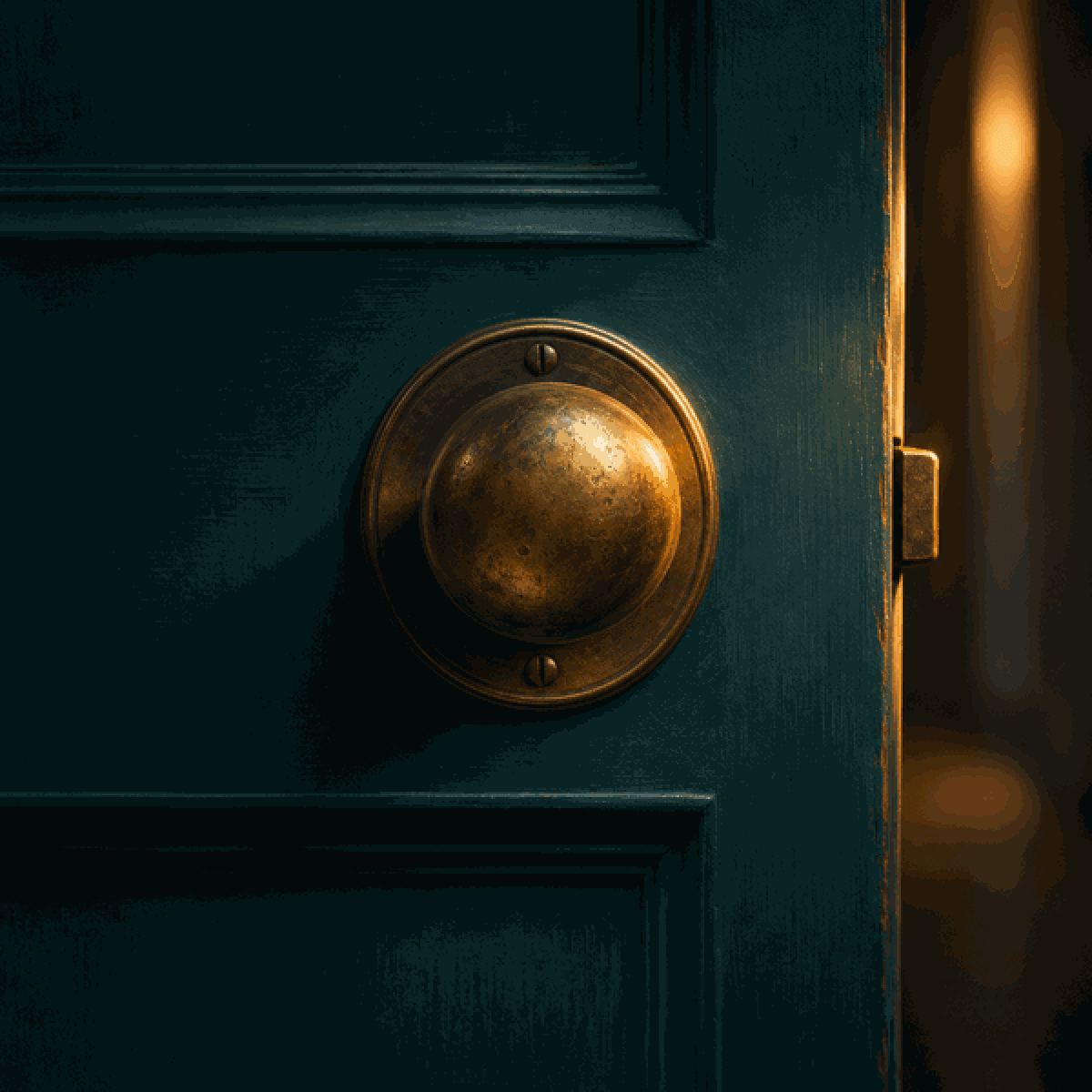
Give the scene one audible clue, such as a door latch, and place it in the gap between two lines.
Listen and make a similar song
Change the piano to match your book's mood, then place the cue between two chapters.
Listen and make a similar song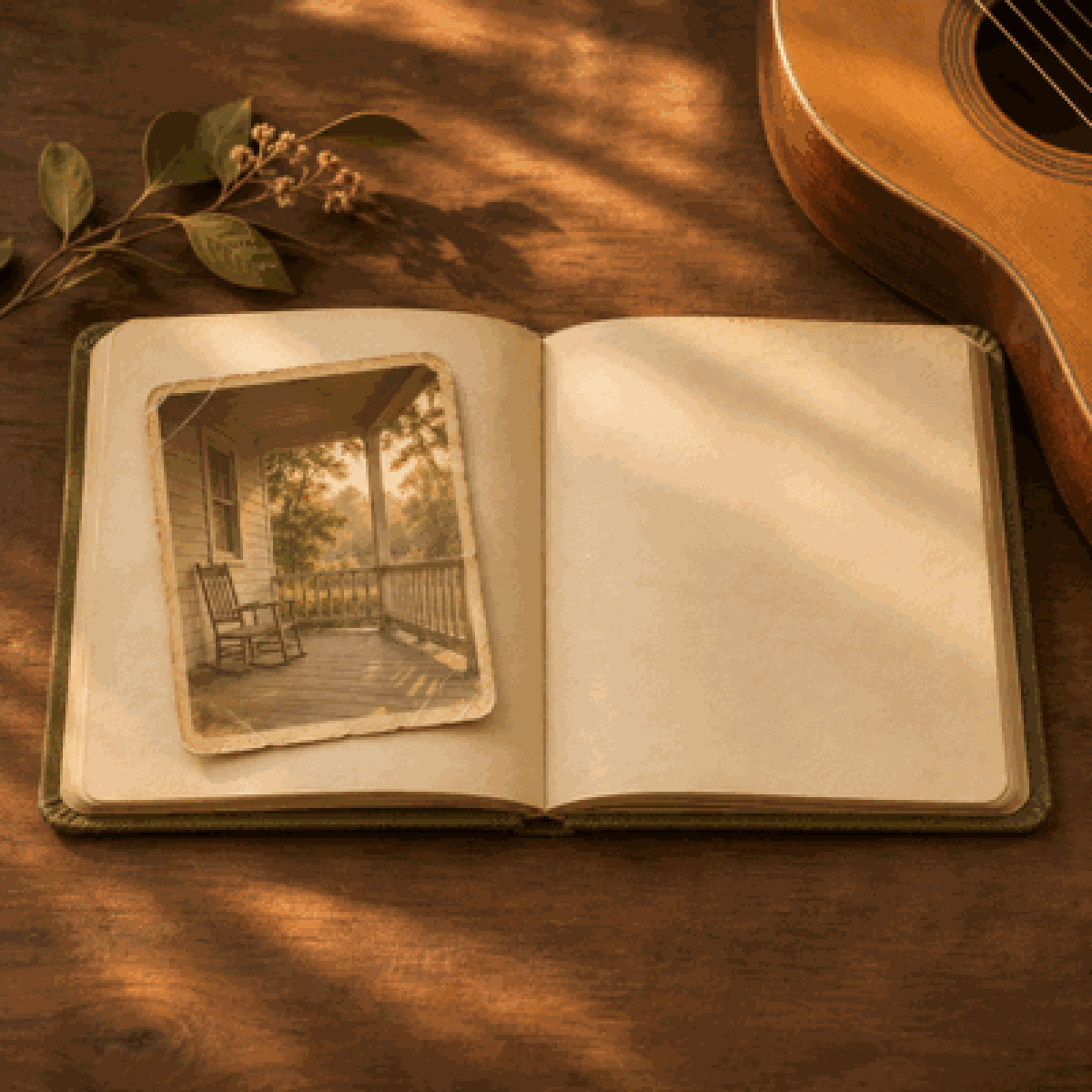
Try fingerpicked guitar under a reflective passage and lower it until every word stays clear.
Listen and make a similar songEdit the bedtime story or adapt the chapter cue to the pacing of your book.
Replace the character and setting, then read the last line aloud to find a natural pause.
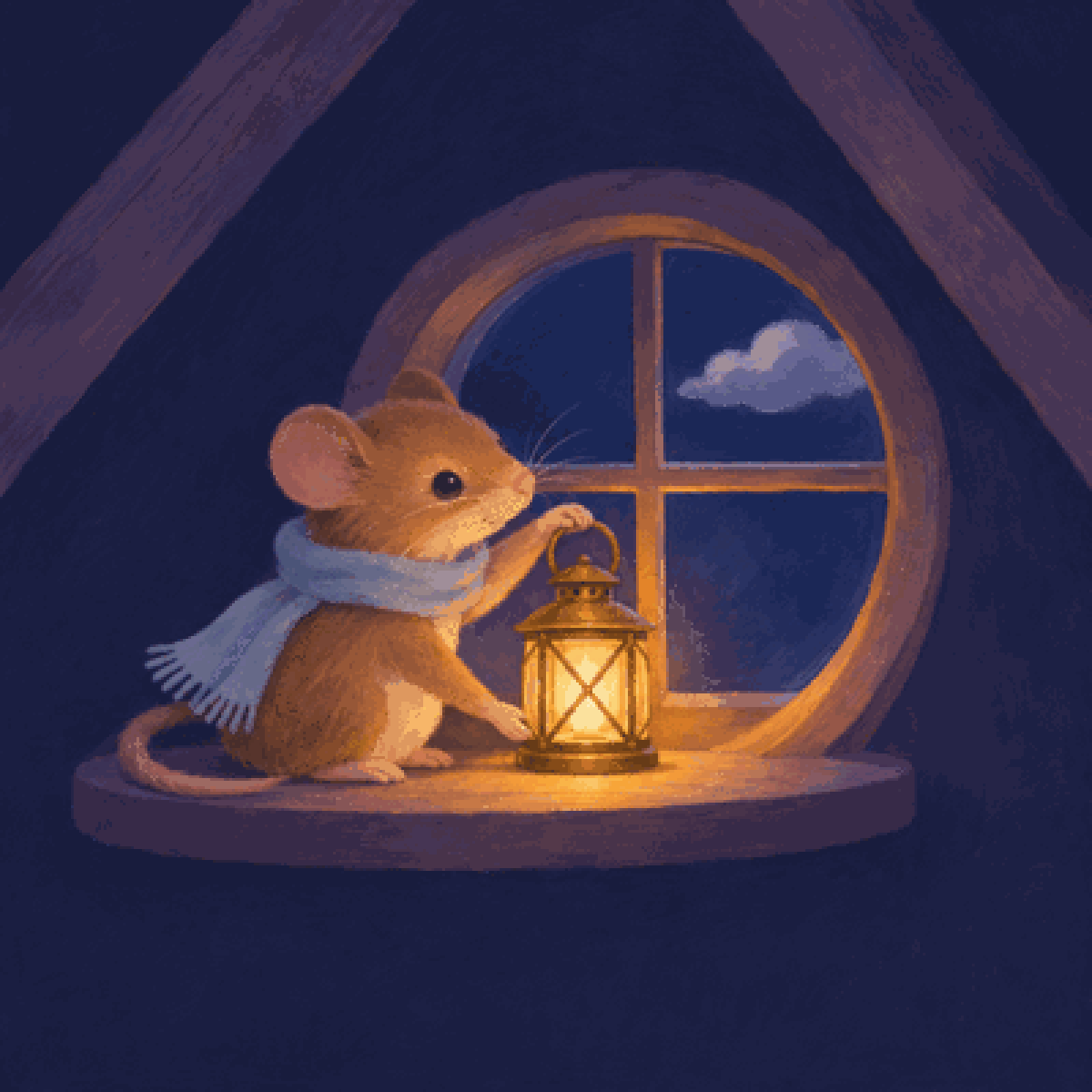
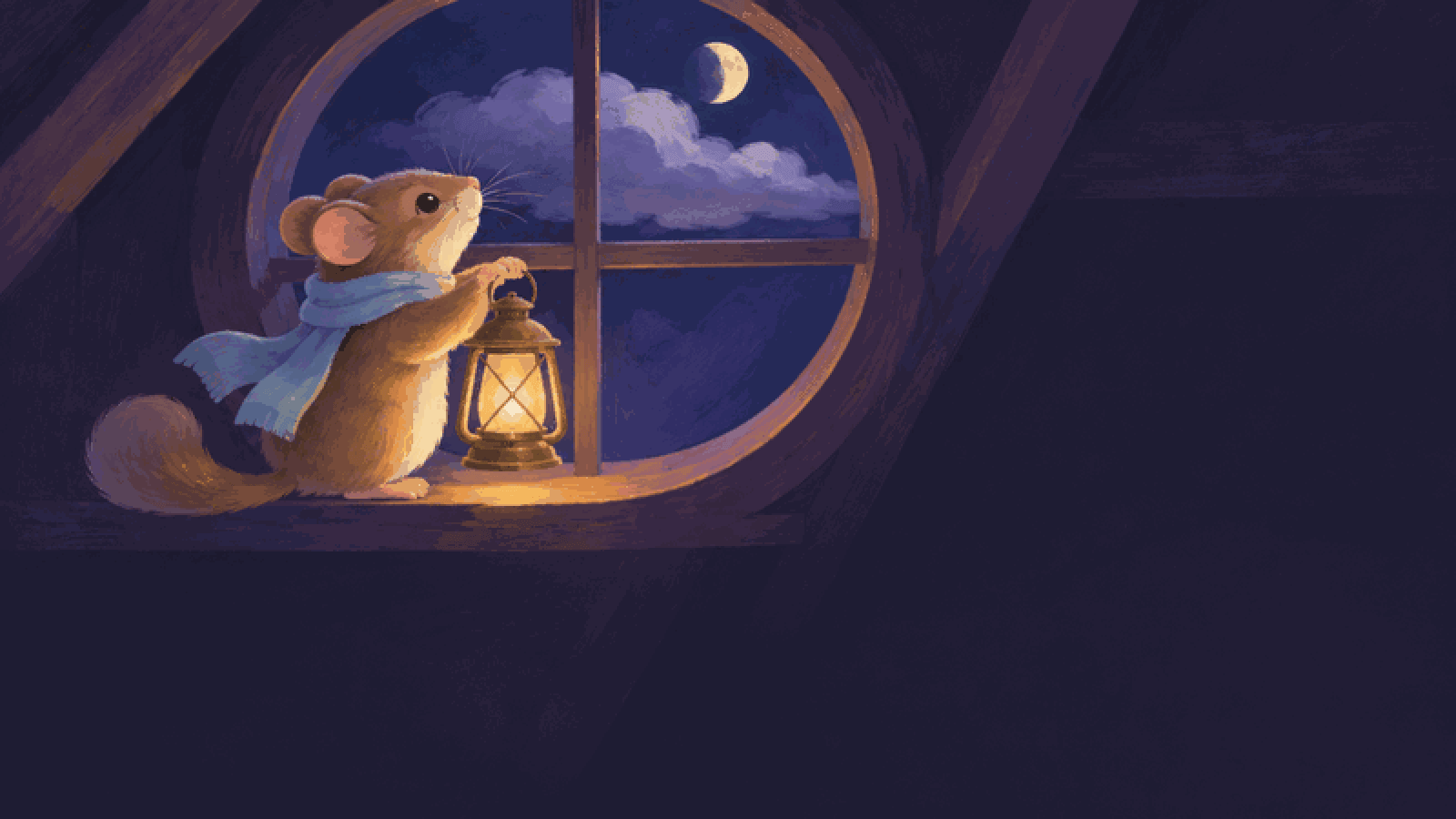
Pip carried the little brass lantern up to the attic. At the round window, a silver cloud had tucked itself over the moon.
He set the lantern on the sill and wrapped his blue scarf a little tighter. Soon the cloud slipped away, and a patch of moonlight landed beside the flame.
Pip watched the two little lights until his eyes grew heavy. Then he left the lantern glowing and went downstairs to bed.
Change the instruments or pace to suit the chapter you are leaving.
Short instrumental cue for the space between two audiobook chapters. Minimal chamber arrangement at about 72 BPM. Play one quiet three-note felt-piano phrase with a restrained low cello answer, then resolve to one soft final note. Keep the dynamics even and give the ending a short natural decay so the next line of narration can enter cleanly. Start the motif immediately. Target one usable 8-12 second passage. No voice, vocal textures, percussion, repeated buildup or long reverb tail.
Choose the steps for a short scene, a longer manuscript or music you can add to an existing recording.
Method 1: Create a Spoken Scene with Music and Sound Effects
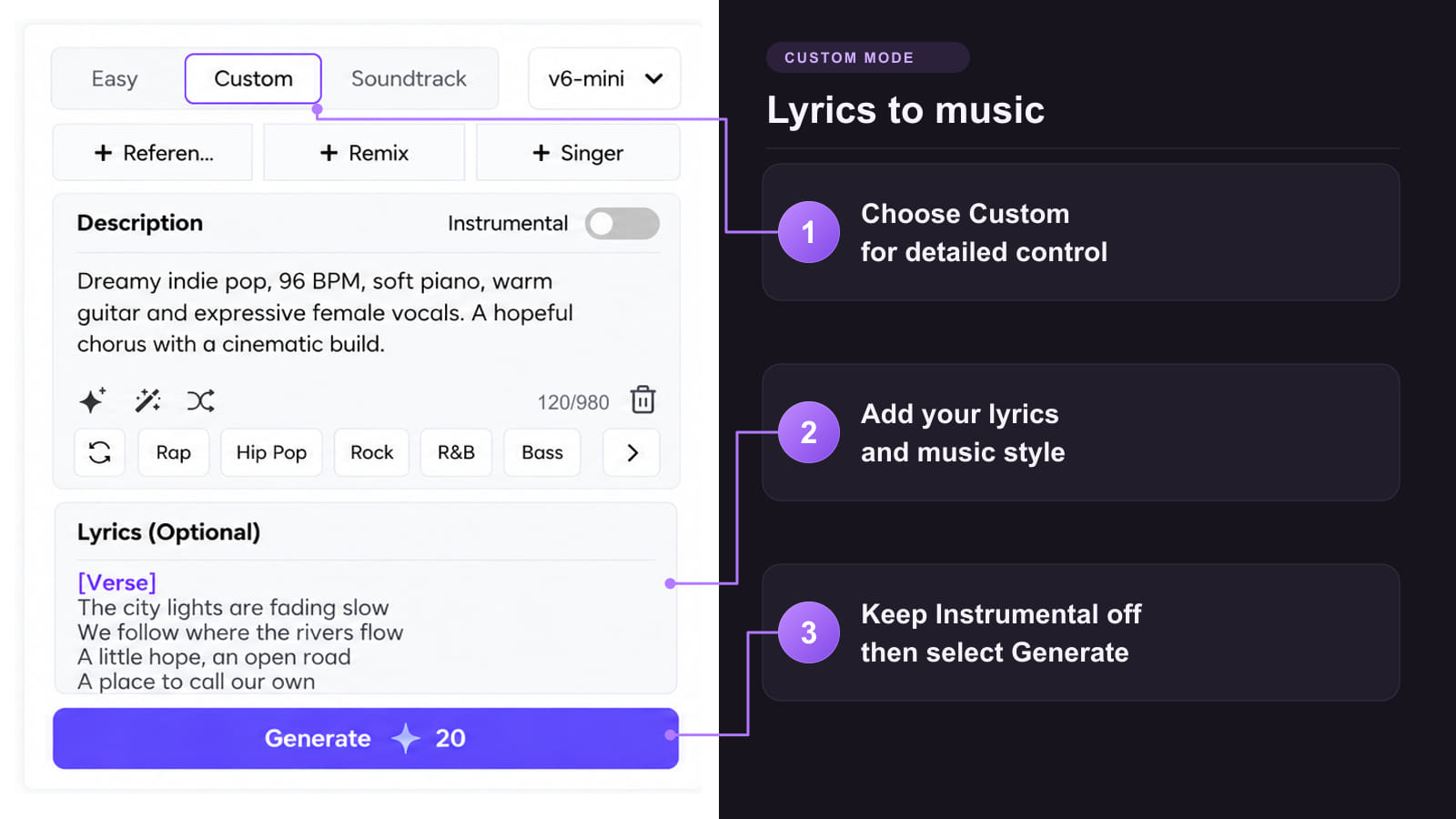
Method 2: Turn a Manuscript into Chapter Narration

Method 3: Make Music for Openings and Chapter Breaks
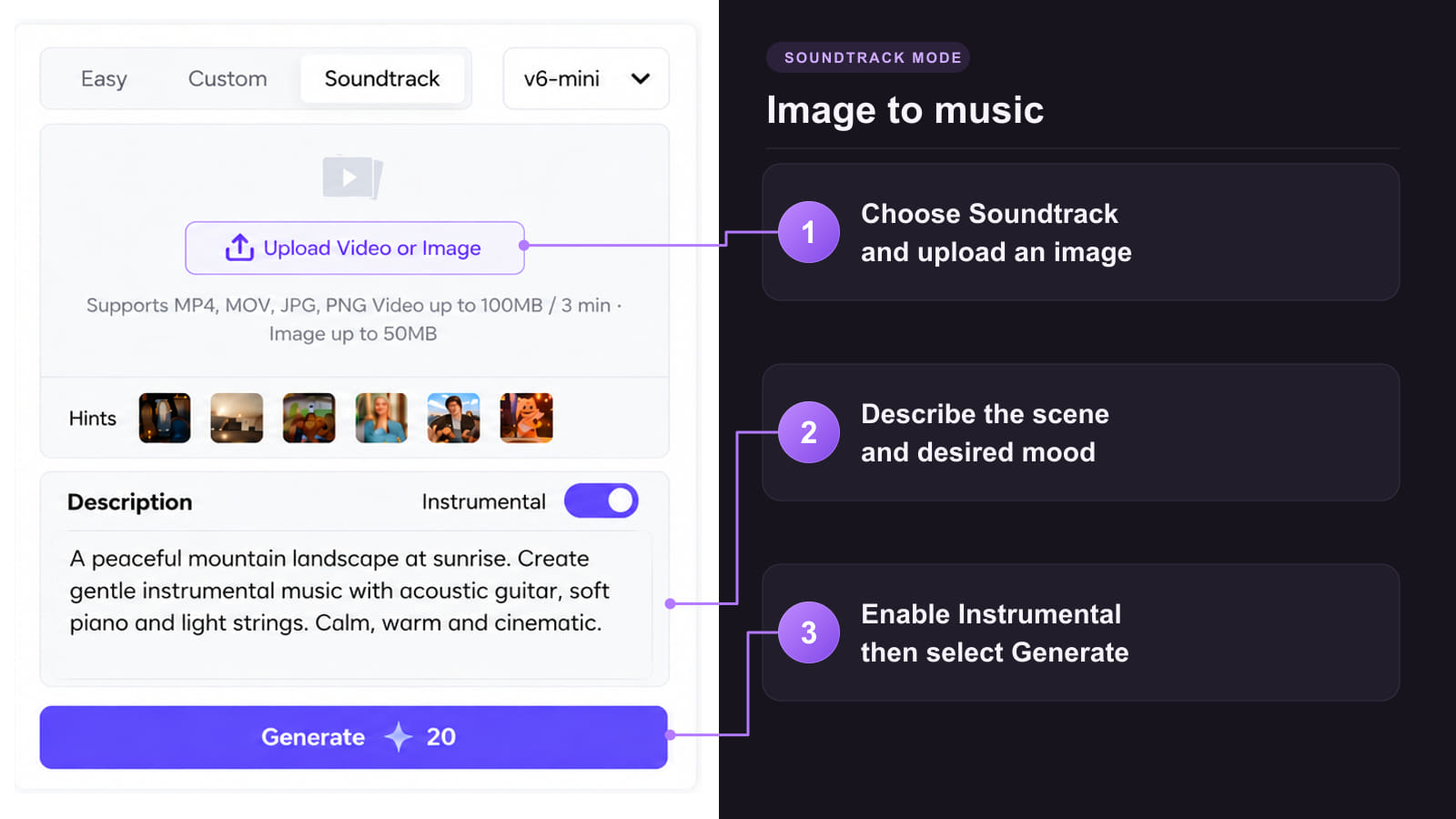

Plan what the listener hears at the opening, during the read and between chapters.
 Start with a short listen
Test a representative paragraph before committing to a narrator for a long project.
 Give each sound effect a purpose
Use a latch, a footstep or a room tone when it helps the listener understand where a scene is happening.
 Let the narration lead
Choose sparse instrumentation under dialogue and check that names and quiet sentence endings stay clear.
 Keep chapter changes recognizable
Repeat a short musical phrase at selected breaks so the listener can hear the change of chapter.
 Build a shareable sample
Use a scene with a clear opening and ending to introduce the story in an audiobook teaser.
Choose the workflow by the size of your project and how you want to build the audio.
| Project question | AI Music: short scenes and music | Long Text to Speech: full manuscripts |
|---|---|---|
| Best fit | A short narrated passage with music or a sound cue for a preview or scene. | A complete book that needs narration organized and reviewed by chapter. |
| Starting point | Paste a short script in Lyrics and describe the narration, music or sound cue. | Upload a book document or paste the text into Audiobook Scripts. |
| Voice and review | Listen to the take for clear words, natural delivery and a balanced music level. | Label speakers, assign voices in Characters Configuration, then generate and review chapters. |
Adjust the music in your project or turn a finished excerpt into a visual teaser.
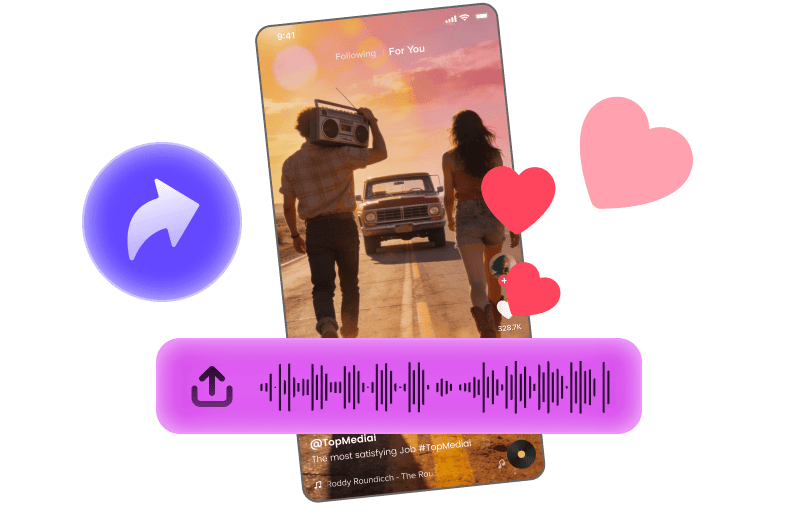
Pair a short audiobook cue with footage for a launch clip.
Explore Tool
Build a visual teaser around an instrumental theme from your book.
Explore Tool
Convert supported instrumental audio to MIDI for further arrangement.
Explore Tool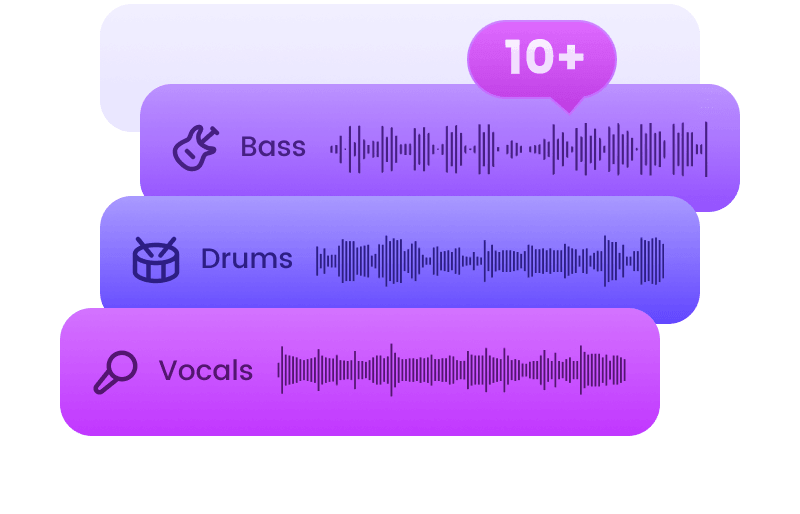
Separate a music track into stems when you need more control in an edit.
Explore Tool
Animate a portrait for a musical bonus clip or character promo.
Explore Tool
Try a different singing voice for a companion song using authorized audio.
Explore ToolFind a tool for your next sound or a guide to working with narration.
Answers about trying the tools, choosing voices, downloading audio and preparing a book for distribution.
Try AI Audiobook CreationYou can start with the free credits available in your account. Check the credits shown before generating and the download options for your result. Long manuscript projects and commercial use may have different plan requirements.
For a complete book, use Long Text to Speech in Voiceover Studio; this generator is for short narrated scenes and music cues. Compare the two audiobook workflows.
TopMediai Text to Speech offers American and British English voice options. Preview the same paragraph in both before you choose. For a short AI Music scene, request the accent in Description and listen back to the take.
Yes. In the Long Text to Speech audiobook editor, label each speaker in your script and assign a voice in Characters Configuration. Preview a dialogue exchange to check that the voices are easy to tell apart.
Yes. Generate an instrumental cue, then import it as a separate track in your audio editor. Try it at the opening or between chapters first. If it plays under speech, lower it until quiet words are easy to hear.
TopMediai Text to Speech offers MP3 and WAV downloads through supported features. Check the download options in your project. Use WAV for further editing when available, then export to the format your distributor requests.
Check the commercial license for your selected track. Eligible paid-plan tracks include a commercial license. Confirm that it covers your intended use and keep the track license with your project. Check the rights for the manuscript, voices and any other audio separately.
ACX requires human narration unless otherwise authorized. Spotify accepts digital narration under its own submission rules. Check the current rules for your distributor before preparing the final files.