


 Join our Discord!


Are you still copying prompts and uploading the same references into separate tools or features? Maybe your AI assistant can help write a song or plan a video just in a chat now. TopMediai MCP connects that conversation to music, image, and video generation, so you can keep developing the same project—from a song idea to a music clip, or from a product photo to an ad. Let's learn how it work!

 TopMediai MCP: Bring Your Creative Brief to Life
Table of Contents
Part 1. What Is TopMediai MCP, and What Can You Create with It?
TopMediai MCP connects a compatible AI assistant to TopMediai’s creative tools. MCP stands for Model Context Protocol: the connection lets your assistant request supported actions, such as generating a song or making a video from references. You describe the result you want; the assistant helps organize the brief and calls the tools that produce it.

The useful difference shows up between tasks. After choosing a song, you can ask for matching character images and a video plan in the same conversation. For an ad, your product details can guide the script, music, and visual references.
| What you start with | What you get | Why it’s easier |
|---|---|---|
| A song idea, lyrics, or story | An original track or soundtrack |
|
| An existing song to promote | Cover art & a short music video |
|
| A product & a musical hook | A custom jingle & promo visuals |
|
| A product photo & selling point | A UGC-style presenter ad |
|
| A reference ad & product image | A custom ad adaptation |
|
See how an idea develops into creative assets in a TopMediai MCP conversation:
Plan from what you have. Turn lyrics, product details, or a reference clip into a concrete generation request.
Carry approved choices forward. Identify the song take, product image, and character references you want the next step to use.
Give targeted feedback. Ask for a different backing track or a simpler video action while retaining the assets you want to keep.
- Keep the creative decisions with the generation requests.
- Use two dedicated ad Skills instead of organizing every production step yourself.
- Usable references and generation costs depend on the selected model and your account.
- Precise audio placement, subtitles, and final assembly may still need a video editor.
Part 2. Connect TopMediai MCP and Start Your First Project
Pick the material you want to start with before connecting: a song brief, a product image, or a reference video. That gives your first conversation a clear job.
Step 1. Choose your assistant
Open the TopMediai MCP connection page and follow the guide for your client. It provides desktop routes for Codex and Cursor and web routes for Grok and Gemini. For the ad Skills in Part 4, use Codex or Cursor and install the complete desktop package.
Step 2. Authorize your account in the current chat
Check your TopMediai connection
Check my TopMediai connection and login status. If needed, open the official authorization flow. Then show the music, image, and video tools available in this chat.
Step 3. Set your project and spending preferences
Tell the assistant your intended output and whether you want to approve each paid generation. For example:
Plan before generating
I want to create an English song and then a short video using my chosen take. For this project, show the proposed model, output settings, and estimated credits before each paid generation, and wait for my approval. Start by helping me write the song brief.
Use the live estimate for your account; the cost changes with the model and settings. Once this preference is established, you can focus your follow-up messages on the creative choices.
Part 3. Create a Song and Turn It into a Music Video
Start with something you can hear. In the author’s music-generation session, the result summary lists four songs with two versions each. The preview below shows the two takes of Somebody Saved Me a Seat, with Play and Open original audio / Download controls.
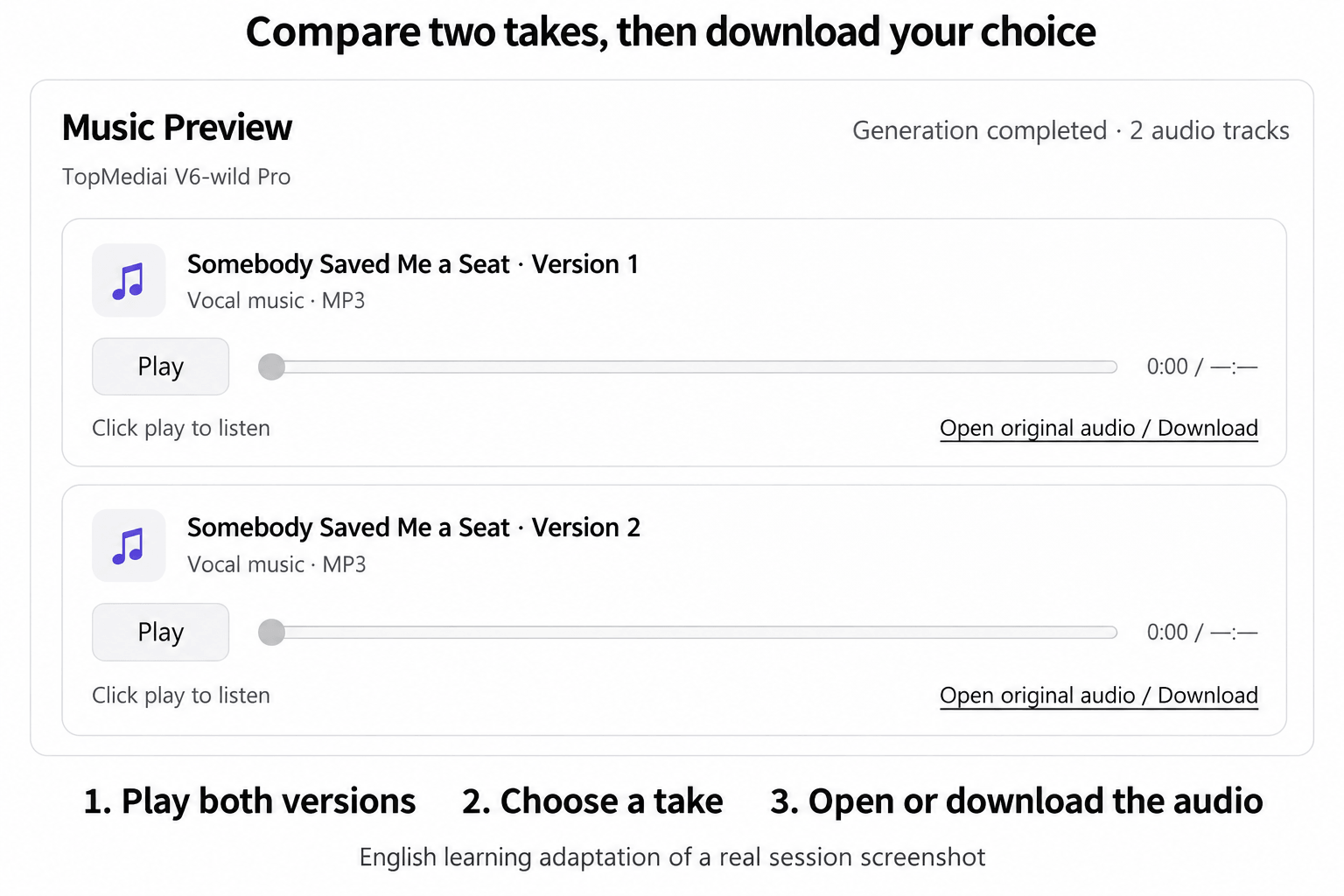
You can use the same decision process for a release teaser, a wedding song, a community event, or a product jingle: generate the audio, choose the take, then decide what the audience should see.
Step 1. Give the song a purpose and a sound
Describe where the song will be heard and what it should make people feel. Here is a new example prompt based on the scenario behind Somebody Saved Me a Seat:
Write a song brief
Help me write an English song called “Somebody Saved Me a Seat” for a youth gathering. Tell a hopeful story about arriving alone and finding a welcoming community. Use a conversational rap verse and a warm, memorable sung chorus. Show me the lyrics and a music-style description before generating.
Keep one emotional idea at the center. Read the chorus aloud: if the key line feels crowded, shorten it before generating the audio.
Step 2. Generate the song and compare the versions
Generate from approved lyrics
Use the lyrics and music direction we approved to prepare this TopMediai song generation. Return the available versions with clearly labeled preview and download links, so I can choose the take before we plan the video.
In your returned result, play each version and compare the vocal delivery, chorus entrance, and ending. The following table translates the author’s session summary into English; its durations describe those particular results.
| Song | Intended use and musical direction | Version A | Version B |
|---|---|---|---|
| We Bring Our Thanks | Sunday worship · lead vocal and congregational response | 1:29 | 1:27 |
| I Will Come Back to the Table | Wedding first dance · acoustic vocal trio | 2:32 | 2:13 |
| Before I Turn the Key | Morning prayer · solo vocal with piano | 2:41 | 2:40 |
| Somebody Saved Me a Seat | Youth gathering · testimony rap | 1:32 | 1:30 |
Translated from the author’s result summary. Durations are reference values here, not audio links.
For a short video, note the passage you want to use as you listen. A clear chorus entrance or a strong lyric can give the opening shot a purpose.
Step 3. Keep one take and identify the excerpt
Name the song and version so the assistant can carry the right file forward. For example, if you prefer Version 2:
Keep your selected take
Keep Version 2 of “Somebody Saved Me a Seat” as the source audio. I’ll choose a 12-second passage after listening. Keep that same audio file for the video plan; do not generate a replacement song.
Already have a song you can use? Attach it and start here. You can move straight to the visual plan.
Step 4. Build the visual story around the selected passage
For this song idea, try a simple sequence: someone arrives alone, notices a seat saved for them, and joins the group. Keep the cast and location small enough to establish clearly in a short clip.
Plan the music-video visuals
Plan a 12-second, 16:9 music clip for my selected passage. Show an adult arriving at a community gathering, another adult inviting them to an empty seat, and a final shared smile. Use a warm, natural visual style. Prepare a three-shot plan and character references for me to review before video generation.
Step 5. Generate the clip and refine the part that needs work
Once the references work, ask the assistant to use those actual files and the chosen music passage with a compatible reference-to-video model. Review the completed clip for character continuity and whether the important action is easy to follow.
If the camera move hides the invitation to sit down, ask for a clearer shot while retaining the approved characters. If you want another musical direction later, keep the useful visuals and request a new track separately.
For the final edit: audio references guide generation. If the original recording must remain unchanged, align that file with the picture in your video editor. This MCP route combines music and reference-to-video generation; the website’s dedicated Music Video Maker is a separate workflow.
Create with TopMediai MCP
Create with your connected AI assistant
Part 4. Create Product Video Ads with TopMediai MCP Skills
A product ad needs a hook, a visible demonstration, and a reason to remember the product. The two recommended TopMediai ad Skills help your assistant organize those decisions before production: UGC Video Ad and Clone Video Ad.
| Your starting point | Choose this Skill | What to ask it to plan |
|---|---|---|
| A product photo and a selling point | $ugc-video-ad |
A creator, spoken hook, setting, and product demonstration. |
| A reference ad and your product image | $clone-video-ad |
An adapted shot sequence, camera direction, and sound cues. |
Keep both Skills installed: the published Clone workflow uses the UGC workflow’s production instructions. The examples use short command names; select the installed Skill name shown in your client if it has a longer prefix.
Make a UGC Video Ad from a Product Photo
Picture a short breakfast ad: a creator introduces a blender, shows it working, and pours a smoothie. One product and one visible action sequence give the viewer something concrete to follow.
Step 1. Attach your product photo and one real selling point. Include a detail image if the main photo hides an important feature. Add your audience and target format.
Step 2. Give the UGC Skill a scene it can build.
Create the blender ad plan
$ugc-video-ad
Use this blender photo to plan a 12-second vertical UGC-style ad for busy adults making breakfast. Show an adult creator in a home kitchen introducing the product, blending, and pouring a smoothie. Use this English hook: “Here’s my breakfast shortcut. Add your fruit, blend, and pour.” The visible creator delivers the lines. Keep the product’s shape and colors consistent. Show me the script and shot plan before generating.
Step 3. Approve the speaker, product reference, and action. Match each line to something visible. Show the blender safely assembled while running, then move to the pouring shot after it stops. Approve a character still if the presenter’s appearance matters.
Step 4. Generate, then watch the demonstration with sound. Confirm that the actual product image is supplied as a reference. Check that the same blender remains in the scene and the voice fits the visible action. If the speech is rushed, shorten the line; if a hand movement fails, simplify that action.
Adapt a Reference Video Ad for Your Own Product
Use this route when you like a reference's opening close-up, reveal, or camera movement and want to build a new ad around your own product. For a handbag showcase, the reference can guide the visual sequence while your product image defines the bag.
Step 1. Attach the reference video and your product image. Provide the actual files and say which part of the reference you want to carry into the new concept.
Step 2. Ask the Clone Skill to turn the reference into a plan.
Adapt the handbag reference ad
$clone-video-ad
Analyze this reference video and adapt its main shot sequence for the handbag in my product image. Identify the camera movements, reveal timing, lighting, and sound cues. Use my image for the bag’s appearance. Preserve the cinematic style while developing an original concept. Show me the shot plan before producing the video.
Step 3. Assign each reference a clear job. The video guides selected framing, movement, and timing. Your product image guides the bag’s shape, material, hardware, and color. If the new concept includes a person, approve that character reference separately.
Step 4. Generate and compare the opening, reveal, and final shot. Check that camera movement helps the viewer see the product. If the reveal feels late, ask for that moment to arrive earlier while retaining the approved lighting and product reference.
Reference-based generation creates a new result, so exact frame-for-frame matching is not assured. If the plan needs multiple clips, include the final assembly in the production approach. If a request times out, check the original task before submitting another generation.
Part 5. Compare TopMediai MCP with Suno and Other Music Tools
If you are choosing between MCP music tools, compare the next step in your project: developing an existing song, adding narration, or turning product assets into an ad.
| Tool | Start here when… | What can follow the music | Practical condition |
|---|---|---|---|
| TopMediai MCP | You want a song or product brief to continue into visuals and ad production. | Character references, reference-based video, and UGC or Clone ad workflows. | Use the desktop package for the two ad Skills; final editing may need separate tools. |
| Suno MCP | You already work with songs in your Suno Library. | Song editing, stems, and images or video through Suno Visuals. | Uses your Suno credits; some features require a paid plan. |
| ElevenCreative MCP | Your project combines narration, music, or dubbing. | Images and video in editable Flows. | Music requires the full connector; the limited Claude directory version excludes it. |
| Pollo MCP | You want an image- or video-led project with audio and editing. | Video workflows, reusable visual assets, and timeline editing. | Uses Pollo account credits; returned previews depend on the client. |
For a song you already manage in Suno, continuing there can be convenient. For the music-to-video and two product-ad routes demonstrated above, TopMediai gives you a concrete place to start with the material you have.
Start with Your Song, Product Photo, or Reference Video
Your first TopMediai MCP project can begin with one useful input. For a music video, choose the song take and passage before building the visuals. For a spoken product demonstration, attach a clear photo and use $ugc-video-ad. For a reference-led ad, supply the clip and product image to $clone-video-ad.
Keep the first output small enough to review: one song, one short scene, or one product demonstration. Select what works, keep those assets, and give the assistant a specific next instruction.
Start Your First Project
Create with your connected AI assistant

